
Everything Cash Kit does, and how to use it
A walk through every screen, the cards that turn your ledger into views of a trip, a business or the car, and ready-made prompts for having an AI assistant build cards for you.
Contents
- 1. Welcome
- 2. Installing, and the first run
- 3. The window at a glance
- 4. Today: where the money is
- 5. Plans: two or three futures side by side
- 6. Calendar: where the days went
- 7. Ledger: every line
- 8. Budget: your plan against what happened
- 9. Statements: no bank link needed
- 10. What each charge is (categories)
- 11. Investments, and where prices come from
- 12. Themes
- 13. Cards: views on your money
- 14. Making a card
- 15. Inside a card
- 16. Rules, groups and chart switches
- 17. Putting rows on a card by hand
- 18. Removing a card, and bringing one back
- 19. The + menu: steps, floors, bills, milestones
- 20. Settings
- 21. The Setup page
- 22. Staying up to date
- 23. Letting an AI build cards
- 24. Starter prompts
- 25. The cards tool, command by command
- 26. Walkthrough: a trip, start to finish
- 27. Walkthrough: the side business
- 28. Where your data lives
- 29. Troubleshooting & FAQ
- 30. Removing Cash Kit
1. Welcome
Cash Kit reads your balances and transactions, either from statements you download from your bank or through a daily feed from SimpleFIN Bridge. It keeps them as plain files on your Mac and draws where the money is: your budget against what you actually spent, live balances, a cash projection you can plan against, a spending calendar, a searchable ledger, and cards, which are views on your money for a trip, a project, the business, or anything else you want to add up.
There is no account with the author, no cloud copy and no analytics. Statements, budgets and positions you import are read on your Mac and never sent anywhere. With a bank link, the app makes two kinds of network call, both to SimpleFIN: the one-time link, and the daily pull. Your bank logins never pass through the app at all. The only other call is the live ticker, which is off unless you turn it on.
Every screenshot in this guide comes from Cash Kit running on a made-up household: invented accounts, invented payees, invented numbers. Your own screens will look the same, with your money in them.
What it costs
- Starting from statements: nothing. You download them from your bank's website and import each new month yourself (Statements).
- For a daily automatic refresh, SimpleFIN Bridge: $1.50 a month or $15 a year, paid to SimpleFIN directly. It is the service that signs in to your banks and hands Cash Kit a read-only feed.
- Cash Kit: nothing. No subscription, no upgrades, nothing to install beyond the app.
2. Installing, and the first run
Cash Kit needs macOS 15 or later, and Apple's free command-line tools, which bring the Python its engine runs on. If they are missing, the app offers to install them.
Updating
Choose Cash Kit → Check for Updates… (also in the menu-bar menu, and in Settings → General). It asks cash-kit.pages.dev whether there is a newer version. Nothing about you or your money goes with the question. If there is one, it says when it came out, links to what's new, and offers Install and Relaunch. That downloads the new app, checks that it is exactly the file published and that it is signed by Cash Kit's developer, puts it in place of this one and opens it again. Your data folder is not touched. If anything doesn't check out, nothing changes and the window says why. Download gets the installer instead, to drag onto Applications as on day one.
Two ways in
- Statements, no bank link. On the assistant's first page, choose Start with statements…. Download a few months of statements from your bank's website (checking and every card, as CSV, QFX or PDF) and import them. Then type in your budget. See Statements and Budget.
- A bank link through SimpleFIN for a daily automatic refresh: the rest of this section.
You can start with statements and link a bank later; nothing is counted twice.
The Setup Assistant
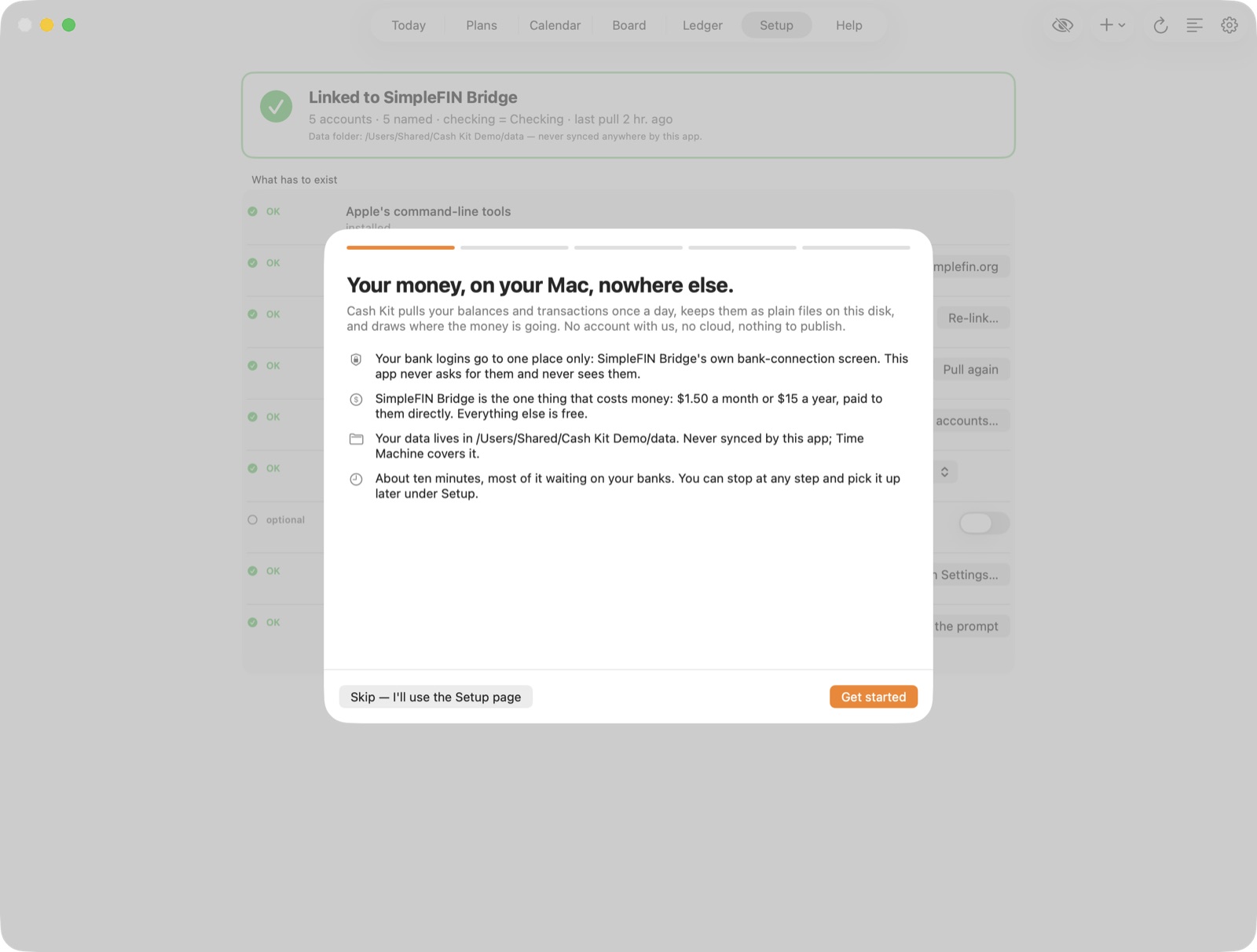
On a Mac that has never been linked, a short assistant opens by itself. It takes you from nothing to a drawn chart in about ten minutes, most of it waiting on your banks. You can stop at any step with Later; everything you did is kept, and the Setup page shows what is left. To open it again, choose Actions → Setup Assistant….
=) and paste it into the assistant. It is used once and never stored; what Cash Kit keeps is a read-only link.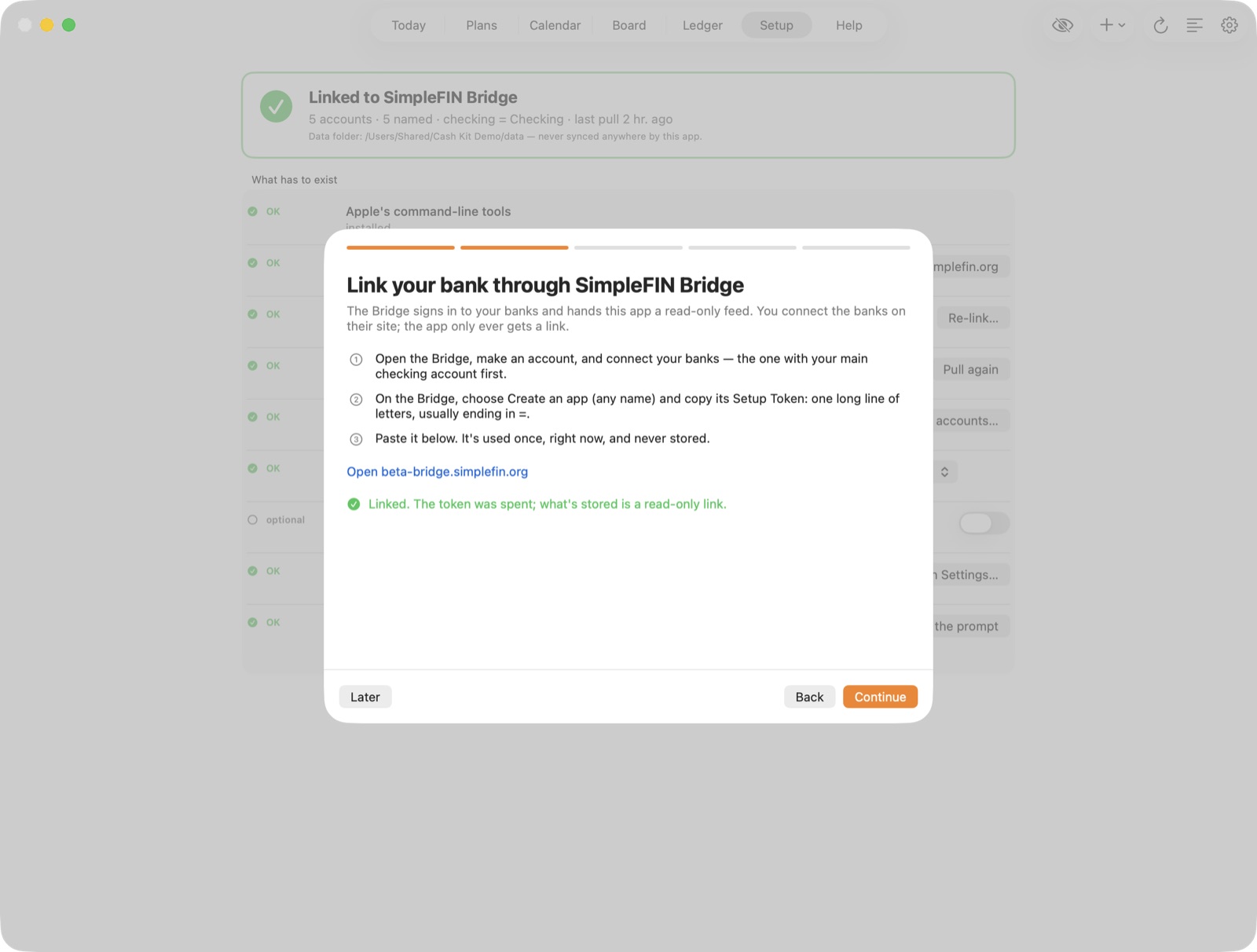
Your bank passwords go into one place only: the bank-connection screen on the SimpleFIN site. Cash Kit never asks for them. Never paste a setup token into an email, a chat, or an AI assistant.
3. The window at a glance
One window, with tabs across the top: Today, Plans, Budget, Calendar, Board, Ledger, Accounts, Holdings, Setup and Help (this guide). The toolbar on the right holds, in order:
- The eye. Numbers are hidden by default; the eye shows them until you click it again. Turn the default off in Settings → General.
- + (Add). New card…, Import statements…, the budget, Manage statements…, Investments…, Plan a step…, Watch a balance…, Monthly bill…, Milestone… See Making a card and The + menu.
- Refresh (⌘R): pull from SimpleFIN and redraw every page. With no bank link it just redraws, so the days since your last statement move on.
- Log: a panel at the bottom with the last refresh's output.
- Settings (⌘,).
The menus
- Actions: New Card… (⇧⌘N), Refresh Now (⌘R), Import Statements… (⇧⌘I), Edit the Budget… (⇧⌘B), Import a Budget from a Spreadsheet…, Manage Statements…, Investments…, Send to iPhone, iPad or Vision Pro… (your data as one file, by AirDrop, for the Cash Kit app on those devices; your bank link stays on the Mac), File Provisional Rows… (section 22), Open Data Folder, Setup Assistant…
- Cash Kit: About, Check for Updates…, Settings, Quit.
- The menu bar: a $ icon with Refresh Now, Open Cash Kit, Check for Updates… and Quit. With hidden numbers turned off in Settings, it also shows your checking balance and net worth (each opens the rows behind it), and a warning when the bank feed is stale.
Closing the window does not quit the app; it keeps refreshing from the menu bar. Quit from the menu bar icon or with ⌘Q.
Every number opens what it adds up
Click any total, balance or average and you land on the rows behind it, already filtered, with a box above them saying where you came from and what those rows add up to. It's the same number you clicked, worked out the same way, so you can check it rather than take it on trust. A number you can click has a dotted underline; a card or table row you can click lifts when you point at it.
- A balance (Today's cards, an account on Accounts, Home on iPhone and iPad) opens that account in the Ledger. Its last column becomes Balance: the account's balance after each row, counted back from what the bank reported, so the newest row shows the figure you clicked. An investment account opens Holdings instead.
- A budget figure (actual, difference, available, any month, a payee under a line) opens just the rows of that line's categories in those months. An average says what the rows add up to and what that comes to a month.
- A day or a month on the Calendar, and a day on the Today chart, opens that day's or month's rows.
- On a card, a category, payee, month, account or day in its breakdowns narrows the card's own rows to it, with Open in the Ledger beside them.
- A budgeted amount opens the budget editor at its line; a plan opens the Plans tab; Net worth opens Accounts.
The box's ← Budget (or wherever you came from) takes you back; Show every row clears the filters. A filter no control shows, like "these three categories" or "only these months", appears in the box with an × to drop it.
4. Today: where the money is
The headline cards
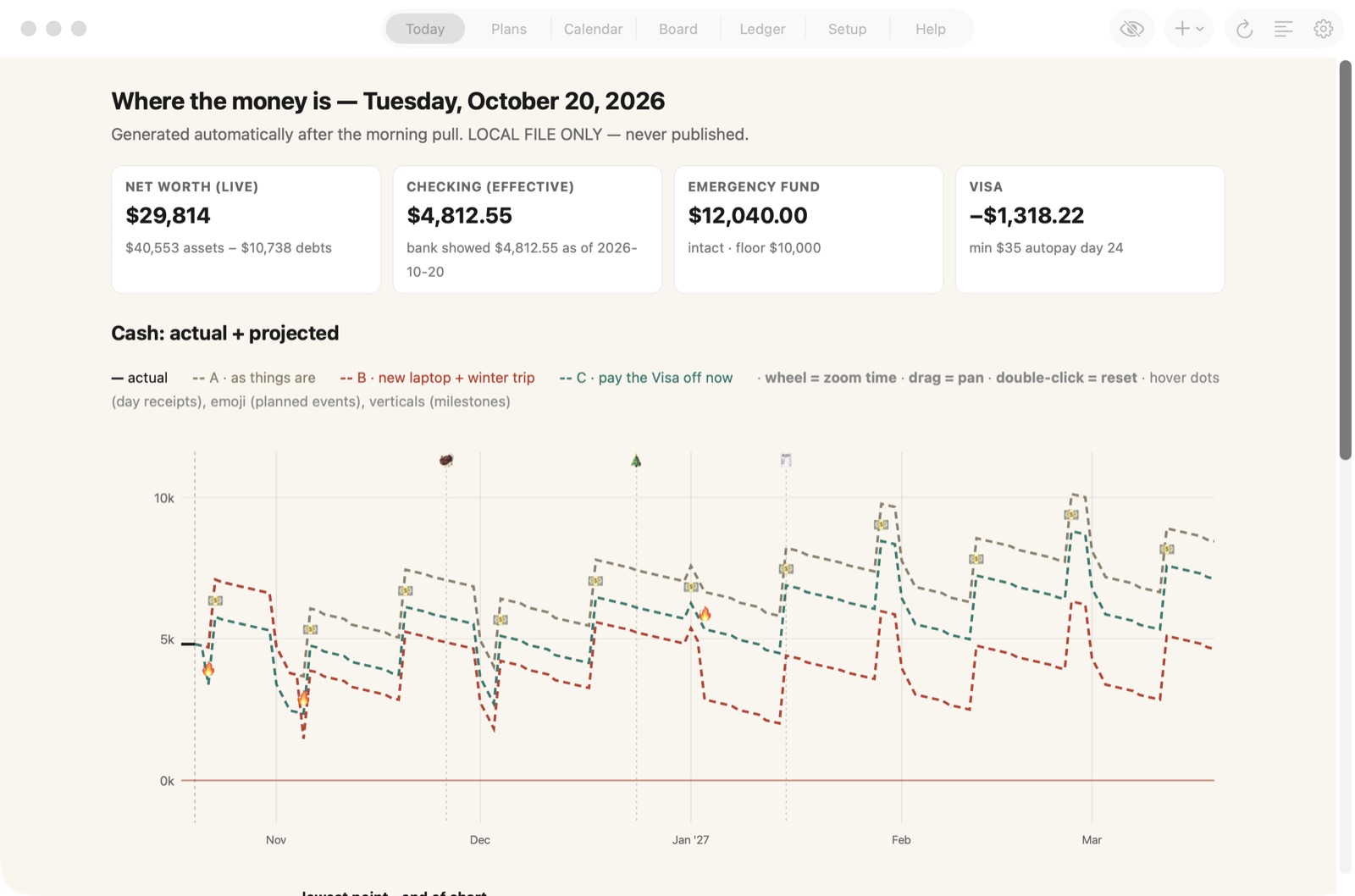
- Net worth (live): everything you own minus everything you owe, across every linked account.
- Checking (effective): what the bank showed, plus any newer posted rows and receipts you reported that haven't posted yet.
- Watched balances, such as an emergency fund with a floor. The note reads “intact” or “⚠️ BELOW floor”.
- Credit cards you described in Settings → Accounts, with the minimum and autopay day.
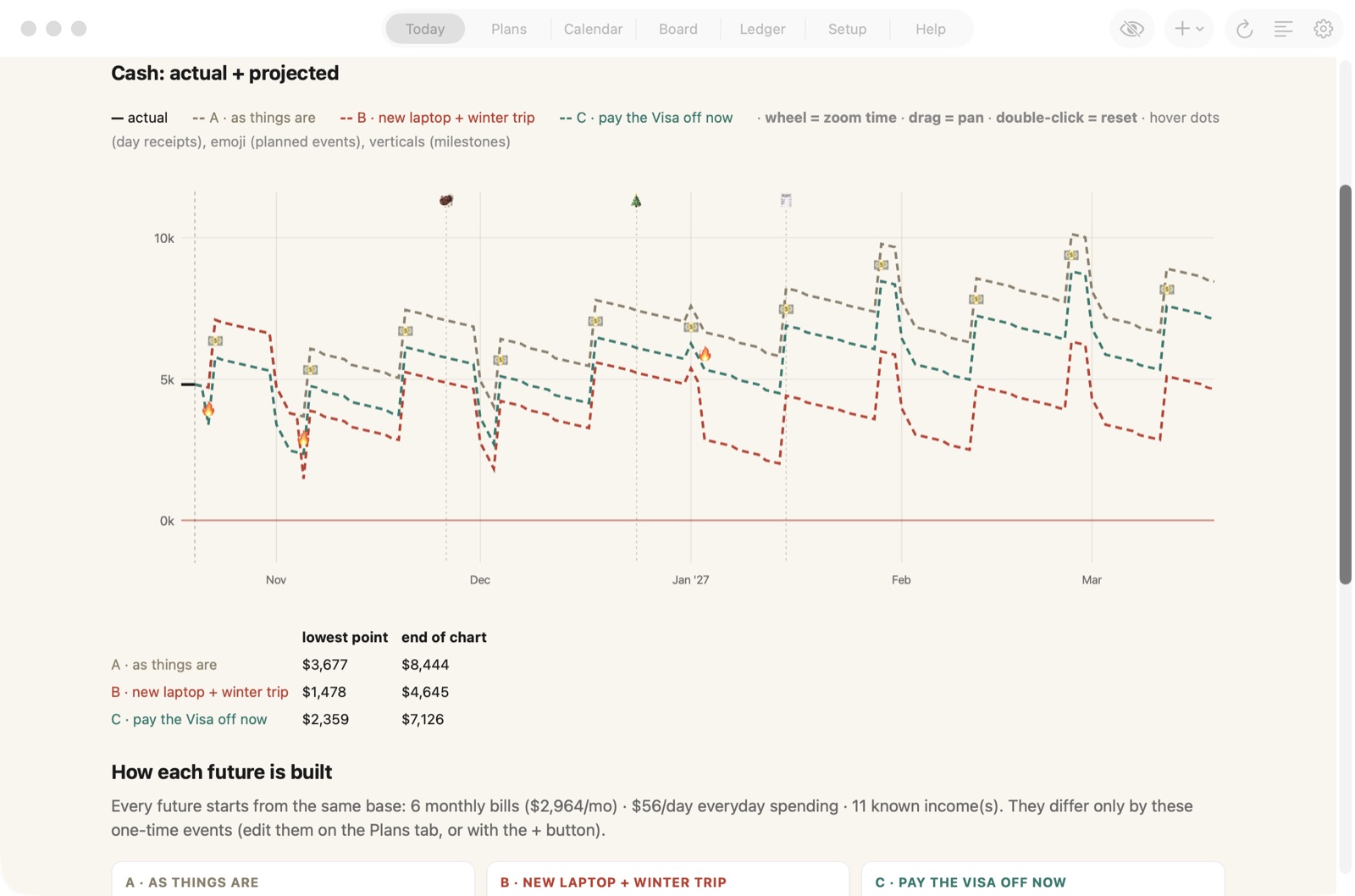
Cash: actual + projected
A solid line for what really happened to checking, and one dashed line per plan for what happens next. Each plan starts from the same base: your monthly bills, your everyday spending per day, and your known incomes. They differ only by their own one-time steps.
- Scroll the mouse wheel to zoom in time, around the cursor. Drag to pan. Double-click to reset.
- Hover for the balance on any day, and each plan's figure from today on.
- Dots mark days with $200 or more of activity: green when more came in, red when more went out. Hover a dot for the receipts.
- Emoji mark planned events: 🔥 money out, 💰 money in, 💵 a known income.
- Dashed verticals are milestones. A red line marks $0 if a plan dips below it.
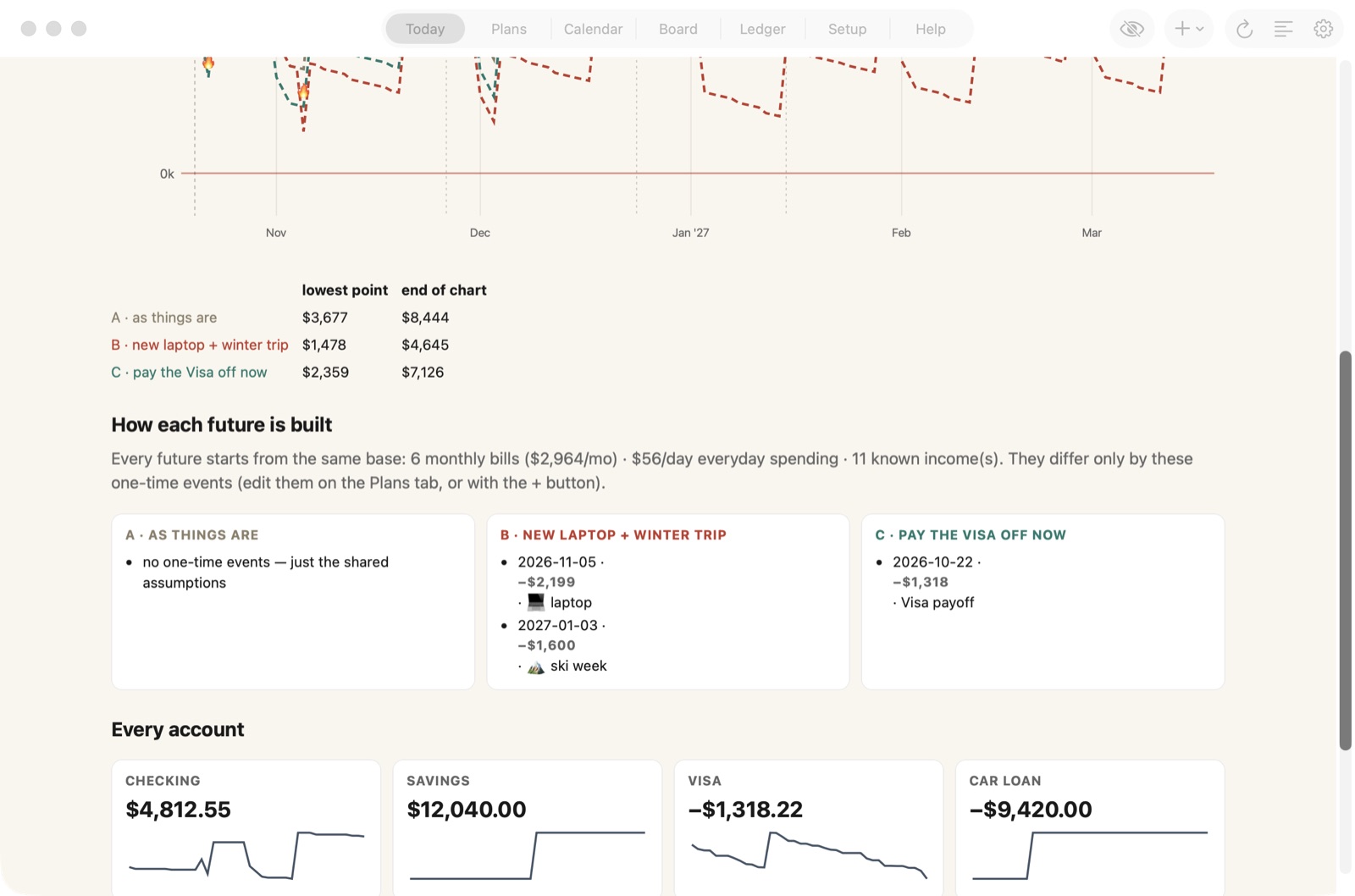
How each future is built, and every account
Under the chart, How each future is built spells out the shared base and each plan's one-time steps, so nothing on the chart is a mystery. Every account follows: one card per account with its balance and a sparkline. An account whose bank stopped refreshing for three days or more gets a stale badge.
5. Plans: two or three futures side by side
A plan is a short list of one-time things you expect to happen to checking: a payoff, a purchase, a check you are owed. Each plan is one line on the chart, so you can hold up to three futures side by side and see which one you can live with.
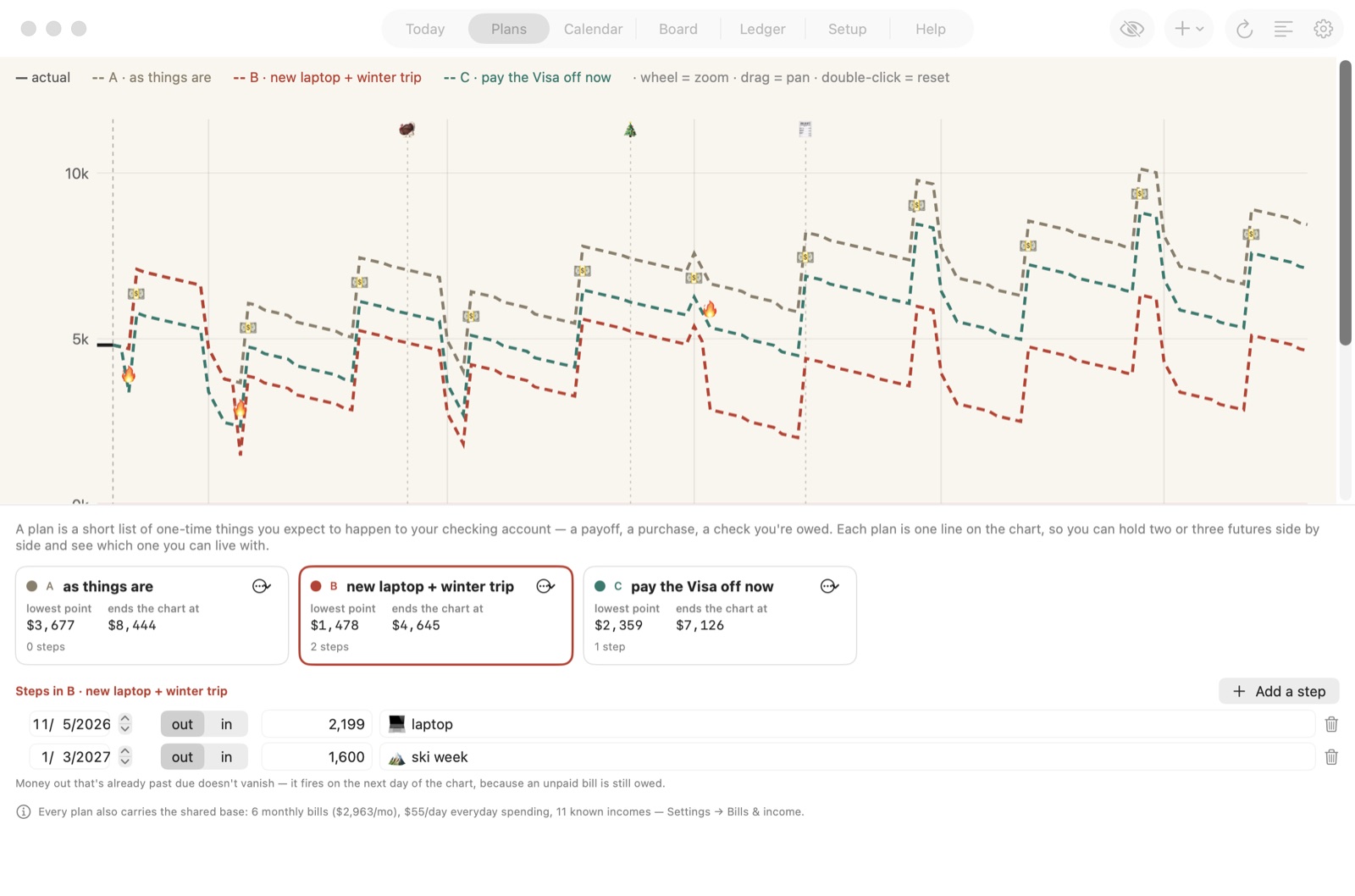
- Select a plan by clicking its card. Rename it by typing in its name.
- Add a step: a date, out or in, an amount, and what it is. The trash button removes one.
- New plan: start empty, or copy an existing plan and change one thing. Up to three plans are drawn.
- The ⋯ menu on a plan duplicates or deletes it. Deleting takes its steps; bills and incomes are shared and stay.
Edits save themselves about a second after you stop typing, and the chart redraws. Only the plans are saved this way: changes you haven't saved on the other Settings tabs wait for their own Save & redraw. A new step draws on the chart once it has an amount. Money out that is already past due doesn't vanish: it fires on the next day of the chart, because an unpaid bill is still owed.
The base every plan shares lives in Settings → Bills & income. Get that right first; plans are only the differences.
6. Calendar: where the days went
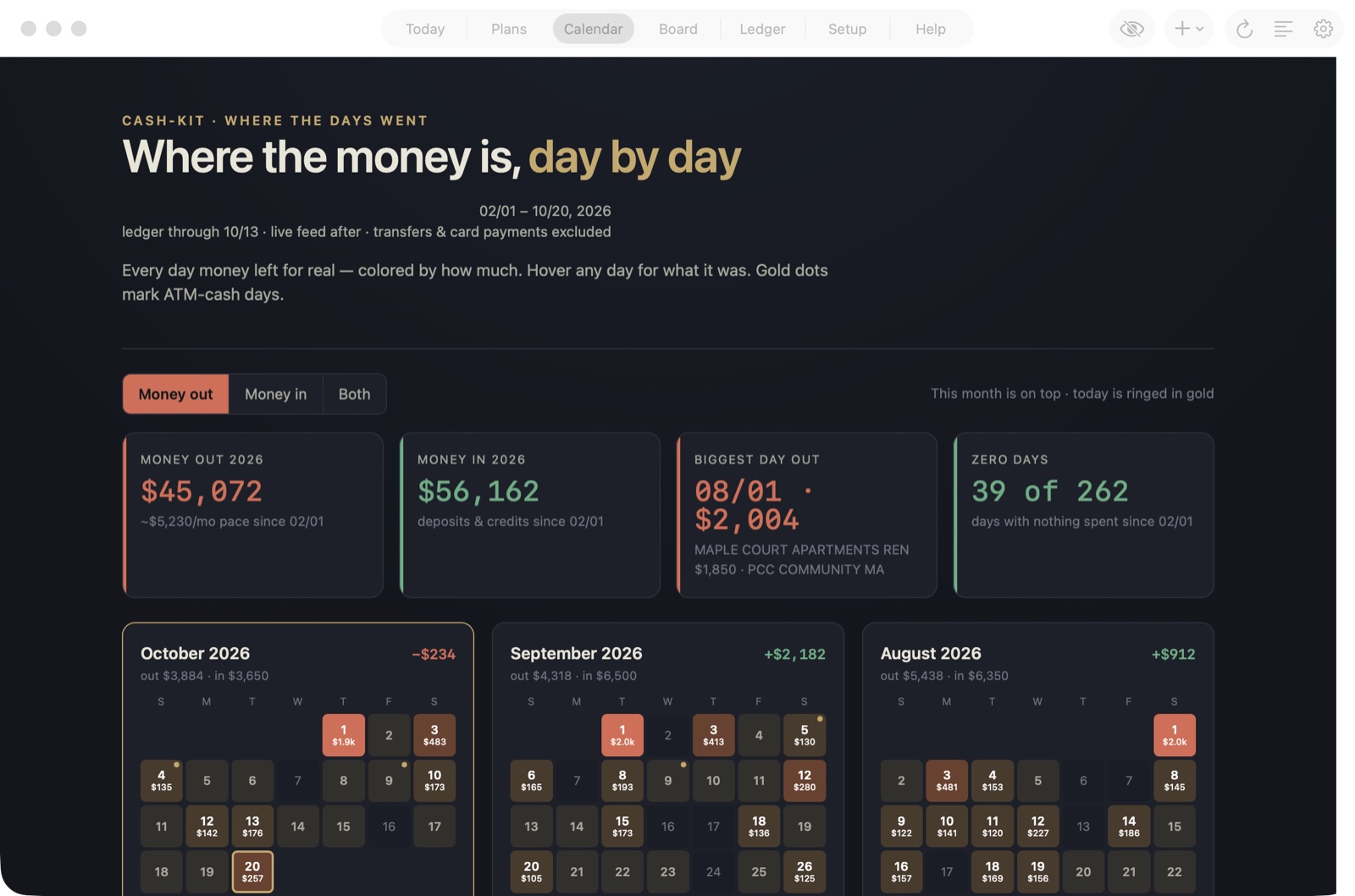
- Money out / Money in / Both switches what colors the days. The choice is remembered.
- Hover a day for its receipts. Days of $100 or more show the amount. Gold dots mark ATM-cash days.
- The four cards at the top total the year: money out and its monthly pace, money in, the biggest day, and how many days had nothing spent.
- Transfers between your own accounts and credit-card payments are left out, so nothing is counted twice.
7. Ledger: every line
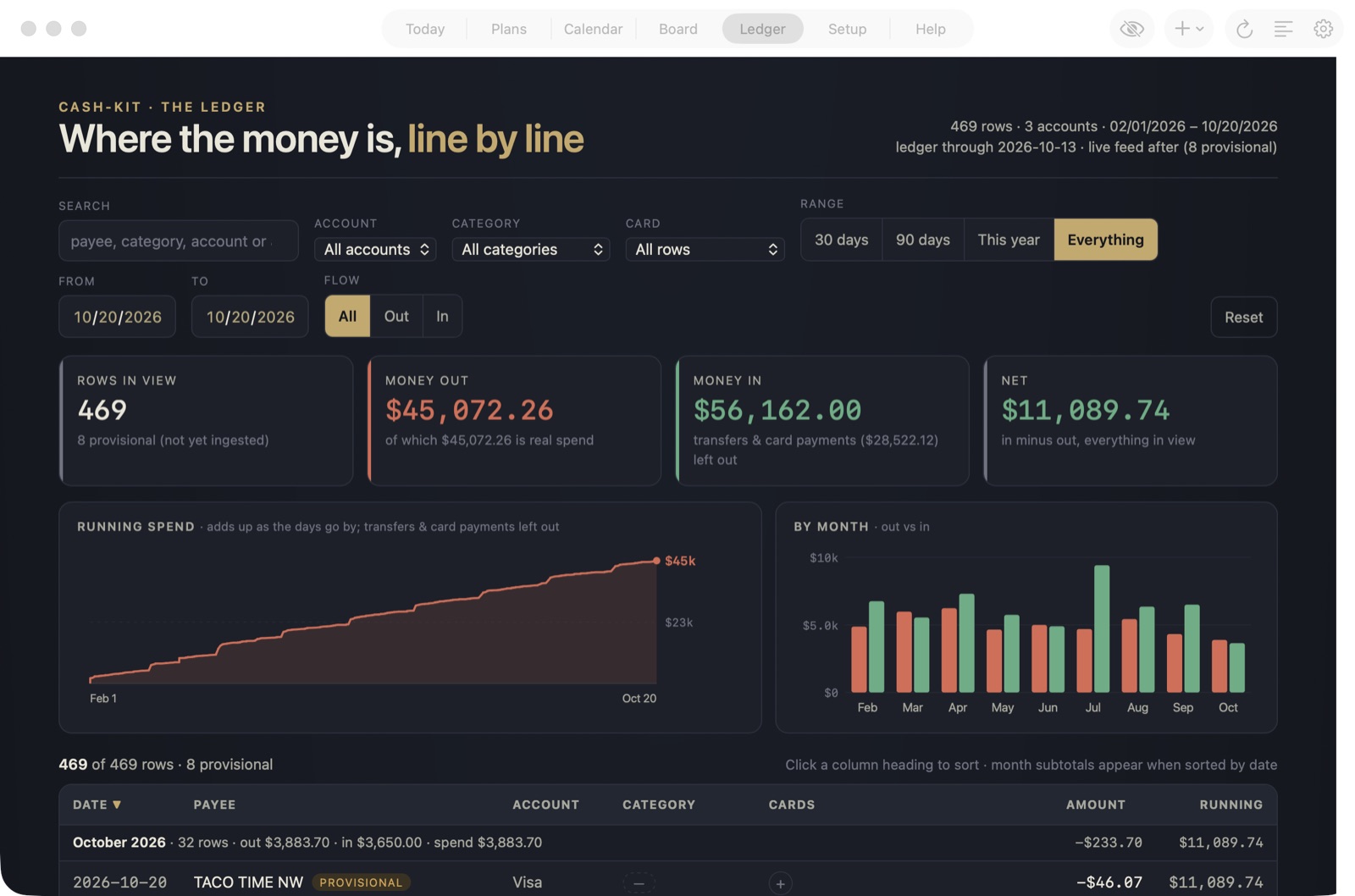
- Search payee, category, account or amount. Press / to jump to the search box.
- Filter by account, category, card, range (30 days, 90 days, this year, everything), dates, and flow (all, out, in). Reset clears them.
- Sort by clicking a column heading; click again to flip. Sorted by date, each month gets a subtotal row.
- PROVISIONAL rows came from the bank feed recently and haven't been filed into the ledger yet (see section 22). REPORTED rows are receipts you entered yourself, shown until the bank's own row arrives.
- The first 800 rows show, with a Show all button underneath.
- Money out and Money in narrow the rows to that direction (click again for all of them); a month's subtotal row narrows them to that month.
- Arriving from a number on another page, a box above the totals says where you came from and what the rows add up to. See Every number opens what it adds up.
The Cards column shows which cards a row is on. A dashed chip means a card's rules caught it; a solid chip means you put it there by hand. How to do that is in section 17.
8. Budget: your plan against what happened
The Budget tab sets each line of your budget against what you actually spent, month by month, and says in plain sentences what stands out.
Putting your budget in
- Type it: + → Type a budget… (or Edit the budget… once you have one, ⇧⌘B). Each line has a name, a kind, an amount (a month, a year or a week; it is kept monthly) and the categories it counts. The kind is Income (money coming in: a paycheck, a rental, a side business), Spending, or Saving (money you set aside, like an emergency fund or a Roth IRA). Use Add income or Add a spending line, or switch any line's kind. The totals at the bottom say what comes in, what goes out, and what's left unplanned.
- Let it guess: name a line and its kind and categories fill in by themselves. "Salary" is income; "Food" covers Groceries, Dining and Coffee; "Car insurance" is Insurance; "Roth IRA" is saving. Change them with the category menu on the line. A category counts against one line only.
- Start from what you spend: Start from… → What I actually spend fills each line with what its categories averaged over the complete months you've imported, and adds lines for spending that has none. Then round each to what you'd like it to be. A typical list of lines gives a blank template instead.
- Bring a spreadsheet: + → Import a budget from a spreadsheet… reads an Excel file (.xlsx), a CSV, or a plain list such as "Groceries 600". It finds the names and the amounts, turns yearly or weekly amounts into monthly ones, and marks each line income, spending or saving: by its name ("Salary", "Roth IRA"), or by the heading it sits under ("Income", "Expenses", "Savings"). It keeps your groups too (see below). If the sheet has Budget, Actual and Available columns, the amounts come from Budget. Check the kinds afterwards in the editor and switch any it got wrong. From Numbers or Google Sheets, export to Excel or CSV first.
Groups: a line split into parts
Many people keep a budget in groups: Auto is Gas, Toll and Auto Repair; Food is Groceries, Restaurants and Coffee. In Cash Kit a group is a spending line split into parts. Each part has its own amount and its own categories, and the line is its parts added up. A charge still has one category, so nothing is counted twice.
- Split a line: in the budget editor, Split on a spending line makes one part for each category it counts. Its amount is shared out by what each category actually averaged (evenly if nothing's been spent yet), in whole dollars that still add up to the line. Rename a part to say it your way, set each amount, or Add a part. Join puts the parts back together as one line, keeping their total and categories.
- From a spreadsheet: an import keeps the groups it finds: a heading with rows under it ("Auto" over Gas, Toll, Auto Repair), a group column beside the names, a group row whose amount is its rows' subtotal, or an "Auto total" row under them. A subtotal becomes the group, so it isn't counted again on top of its rows.
- Which charges a part counts: a part named like a category you already have ("Gas", "Car Payment") counts that category. A name that's new to Cash Kit, such as "Toll", starts as a category of its own, empty until you file charges under it: click a toll charge's category on the Ledger, pick Toll, and every one like it follows.
Every line on the Budget tab has an edit button that opens the editor at that line.
What the Budget tab shows
- The four numbers: budgeted spending, actual spending, money in, and what's left over, all per month.
- What stands out: lines that run over (and the payee most of it went to), lines that come in under, money going to things the budget has no line for, what's left over against what you meant to save, the charges that recur every month, anything not yet sorted, and any statement that's missing.
- Needs, wants and saving, for the budget and for what actually happened. Needs are housing, utilities, groceries, insurance, health, phone, getting around, kids, school and fees; wants are the rest.
- Money coming in: each income line planned against what actually came in under its categories, month by month. The line that counts “Income” (a “Take-home pay” or “Salary” line gets it) also counts every deposit no other income line counts, whatever it is filed under: “Paycheck”, “Business Income”, or nothing at all. It lists the categories it counted. So with one income line, it shows all the money coming in. Give a second line (“Rental”) its own category and that money moves to it. When no line counts “Income”, money under a category no income line counts is listed on its own. To file deposits under a line, click their category on the Ledger and pick the line's name.
- Line by line: budget, actual, the difference, available, and each month. Actual and the difference are monthly averages. Available is what's left of the line in the latest month you have transactions for: this month so far, or the month your last statement covers. Green is at or under the line; this month is compared with the pace so far. Open a split line (or open all) to see each part with its own budget, actual, difference and available. Open a line that counts several categories to see what each of them spent. Open a part for the payees its money went to.
- Not in your budget: categories with spending and no line. add to a line… counts one against a line, or against one part of a split line, from then on.
- What is this? and Recurring charges: see What each charge is.
- Statements: a grid of which months each account has, so you can see what to download next.
Averages only use complete months. A month counts only when every account with data in it covers the whole month. A month that has only the Visa in it would make you look thrifty, so it waits until the checking statement for that month is in too.
With a budget and no bills entered in Settings, the projection on Today uses the budget's monthly spending and income as a steady daily amount until you enter your real bills and paydays.
9. Statements: no bank link needed
Download statements from your bank's website and choose + → Import statements… (⇧⌘I). Several at once is fine. Get checking and every card, for the last few months.
Which file to download
| Format | How well it reads |
|---|---|
| QFX / OFX / QBO (often called "Quicken" or "Money" download) | Exact: it's machine data. Best choice when the bank offers it. |
| CSV ("download transactions" or "export") | Very good. The columns are worked out from the header row. A running-balance column is checked row by row. |
| PDF (the statement itself) | Good on most banks, read from the PDF's text. A scanned PDF (a picture of a page) can't be read; use the CSV or QFX for that month. |
How it's checked
Each file is read on your Mac by plain code. No AI is involved and nothing is uploaded. Before anything goes in, the import window shows each file's dates, rows, money out and in, and a mark:
- A green seal: the rows add up exactly to the statement's own opening and closing balances, or it's the bank's exact QFX/OFX download.
- A dotted circle: the file has no balances to check against, typical of a card's CSV. It's the bank's own export, so it's fine. If purchases came out as money in, tick Signs are backwards.
- A red triangle: a statement that prints its balances, but the rows don't add up to them (it says by how much). It isn't imported unless you tick Import anyway. Usually the better fix is the CSV or QFX for that month.
Pick or type the account each file belongs to, and whether it's a bank account or a credit card. Next month, a file from the same account is recognised by itself.
What happens on import
- Rows already in the ledger for that account, day and amount aren't added twice. Overlapping downloads, or a CSV and a PDF of the same month, are fine. The same file twice is skipped.
- The statement's balances become that account's balance on those days, so Today, Accounts and net worth work with no bank link.
- A month with no statement is a gap. The balance stops at the last statement before it instead of guessing, and the Budget tab lists the gap.
- If an export has no balance at all, the import window asks what the account shows today.
Manage statements
+ → Manage statements… lists everything imported, by account. Remove… takes a file back out (its rows and the balance it gave) when it went into the wrong account; you can import it again into the right one. Set balance… records what an account shows on a given day.
Linking a bank later is fine: for each account, the bank feed only fills in after its last statement.
10. What each charge is (categories)
Most charges are recognised by themselves: a few hundred common merchants are built in (Safeway is Groceries, Shell is Gas, Netflix is Subscriptions), and a card's own category column is used when its export has one. Guesses show in italics on the Ledger.
- Click any category on the Ledger to say what that payee is. The words to match start as the payee without its store number and town ("SAFEWAY #1552 SEATTLE WA" becomes "safeway"); you can shorten or lengthen them. Every past and future charge whose payee contains those words follows.
- What is this? on the Budget tab lists the payees nobody has sorted yet, biggest first, each with a pick-list. One pick is a rule for every charge like it.
- Settings → Categories lists every rule, to change or remove, and lets you add one.
- Transfer means your own money moving: checking paying the Visa, a sweep to savings. It never counts as spending or income. Card payments are matched by themselves: the same amount leaving one account and arriving at another within a few days, with a payment or transfer word on either side.
A category typed into the ledger by hand always stands; rules only fill in blanks.
11. Investments, and where prices come from
+ → Investments… keeps what a brokerage or retirement account holds, with no bank link.
- Type positions: name the account (pick an existing one with Pick), set the As of date, and list each position: symbol, shares, and price, or just the value. Add cash adds the account's cash. Save.
- Import a positions file: the positions or portfolio download from Fidelity, Schwab, Vanguard, E*Trade and most others (CSV), or a brokerage's QFX. A file with several accounts in it is split by account. Name each one once and it's remembered.
Each save or import is a snapshot: the account's positions on that day. The Holdings tab shows value over time from your snapshots, and splits the change between them into the market move (price changes) and shares added or removed (buying, selling, contributions). The account's total also counts in net worth on Today and Accounts.
Do prices update by themselves?
No, not the values Cash Kit keeps. The Holdings tab, the Accounts tab and net worth always show the values from your last snapshot, marked "as of" its date. They change only when you save or import a new snapshot, or, with a bank link, when the daily pull brings your brokerage's own values.
| What you see | Where its numbers come from | When they change |
|---|---|---|
| Holdings tab, Accounts tab, net worth | Your newest snapshot (typed, imported, or from the bank link) | When you save or import, or at the daily pull with a bank link |
| The live ticker strip | Live prices × the shares in your newest snapshot | When the app opens, then every 1, 5, 15 or 60 minutes, only while the ticker is on |
So a stock that rose today shows the new price on the ticker strip right away, but your Holdings tab keeps the value you last saved until you update it. That keeps your history a record of what you entered, never of a moment's quote.
The live ticker
Turn it on with the Live ticker switch in the Investments window, or Settings → General → Live ticker. It is off by default.
- A strip along the bottom of the window scrolls each holding: symbol, live price, today's change, and (when numbers are shown) what your shares are worth at that price. At the front is your whole portfolio's move today.
- It fetches when the app opens, then on the interval you choose: every minute, 5 minutes, 15 minutes or hour. Prices outside market hours are the last close; mutual funds price once a day.
- What leaves your Mac: while it's on, the app asks Yahoo's public quote feed for each symbol you hold. The request carries the ticker symbol only: no account, no shares, no amounts, no cookies. It is the one thing in Cash Kit that goes on the internet besides the bank link, which is why it's off unless you turn it on.
- Turning it off stops the requests and hides the strip.
12. Themes
Settings → Appearance has fifteen themes: Classic (the original look), nine dark (Graphite, Harbor, Moss, Ember, Plum, Midnight, Phosphor, High contrast) and six light (Paper, Linen, Sky, Sage, Blush, High contrast). Click one and every page redraws in it, charts and the calendar included, and the app's own windows follow its light or dark mode and accent colour. Only how things look changes, never the numbers or your files. The Board's sticky notes and this guide keep their own look.
13. Cards: views on your money
A card is a view you make on top of your ledger. It never changes or copies your transactions; it decides which of them belong to one thing, adds them up, and gives that thing its own page. A trip, the business, the car, cash, subscriptions, a kitchen remodel, a kid's sports season: if you can describe which transactions belong to it, it can be a card.
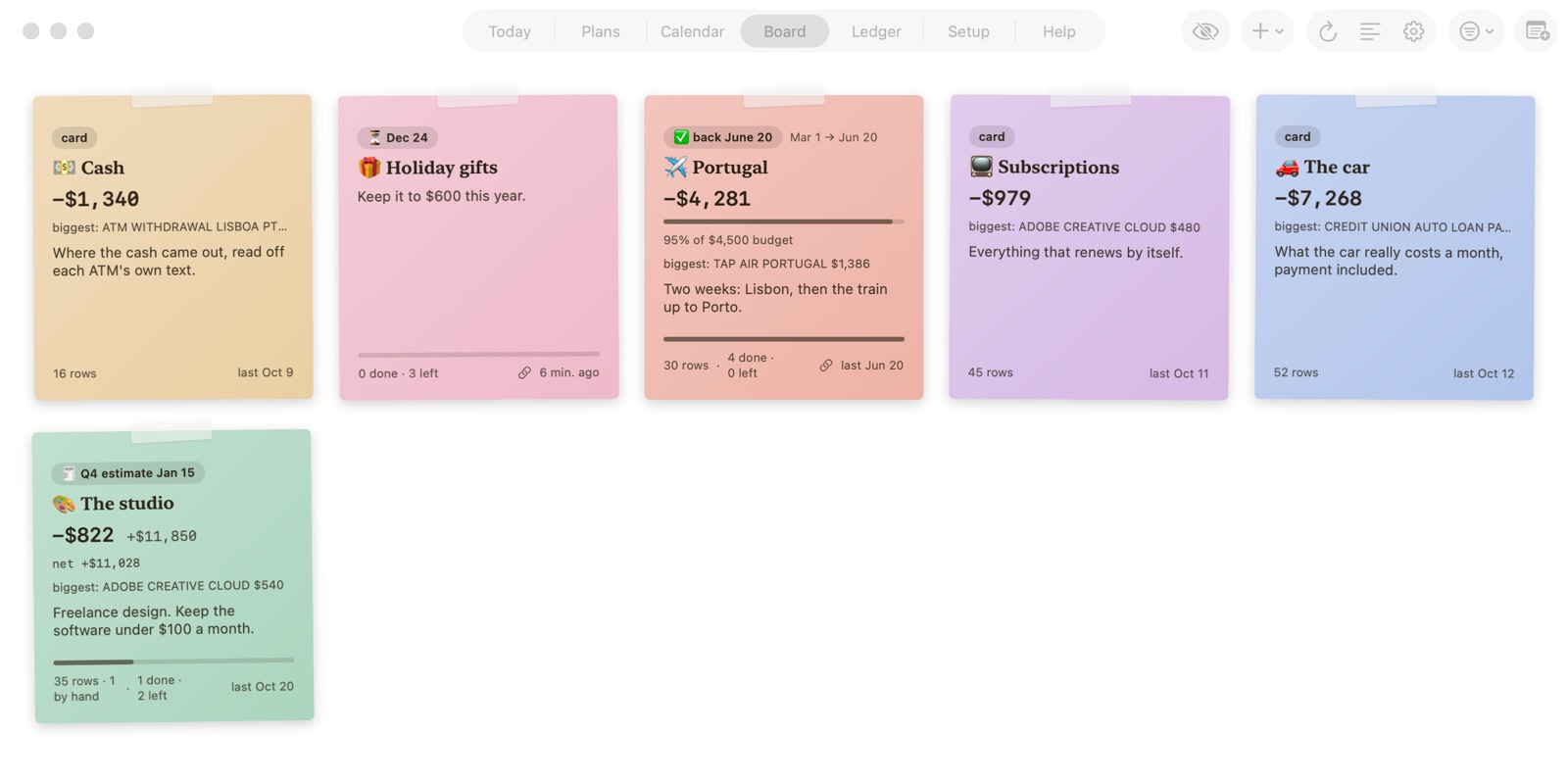
A card has up to three parts:
- Rules that pull transactions onto it by themselves: match words found anywhere in the payee (“tap air”, “airbnb”), categories that always count (“Travel”), and an optional date window.
- Numbers those rules produce, plus any rows you add by hand: totals, a budget bar, a chart, a calendar, and tables by category, payee, month and account.
- A plan: a summary, a checklist of steps, and links. A card with no rules is just this, a note on the Board.
Rows can sit on more than one card. A dinner in Lisbon can be on both “Portugal” and “Restaurants”.
Who can make cards
Anyone, three ways, and they all write to the same file:
- In the app, with the New card wizard (section 14), or ⌘N on the Board for a plain note.
- By asking an AI assistant such as Claude Code or Codex, using the starter prompts in section 24. The assistant uses a small tool that previews every rule before it saves anything.
- From Terminal, with the same tool (section 25).
The Board
- Cards sort by newest activity. The filter menu shows Everything, With numbers or Notes only.
- ⌘N sticks up a plain note (while the Board tab is showing). ⇧⌘N starts the New card wizard from anywhere.
- Click a post-it to open it (section 15).
14. Making a card
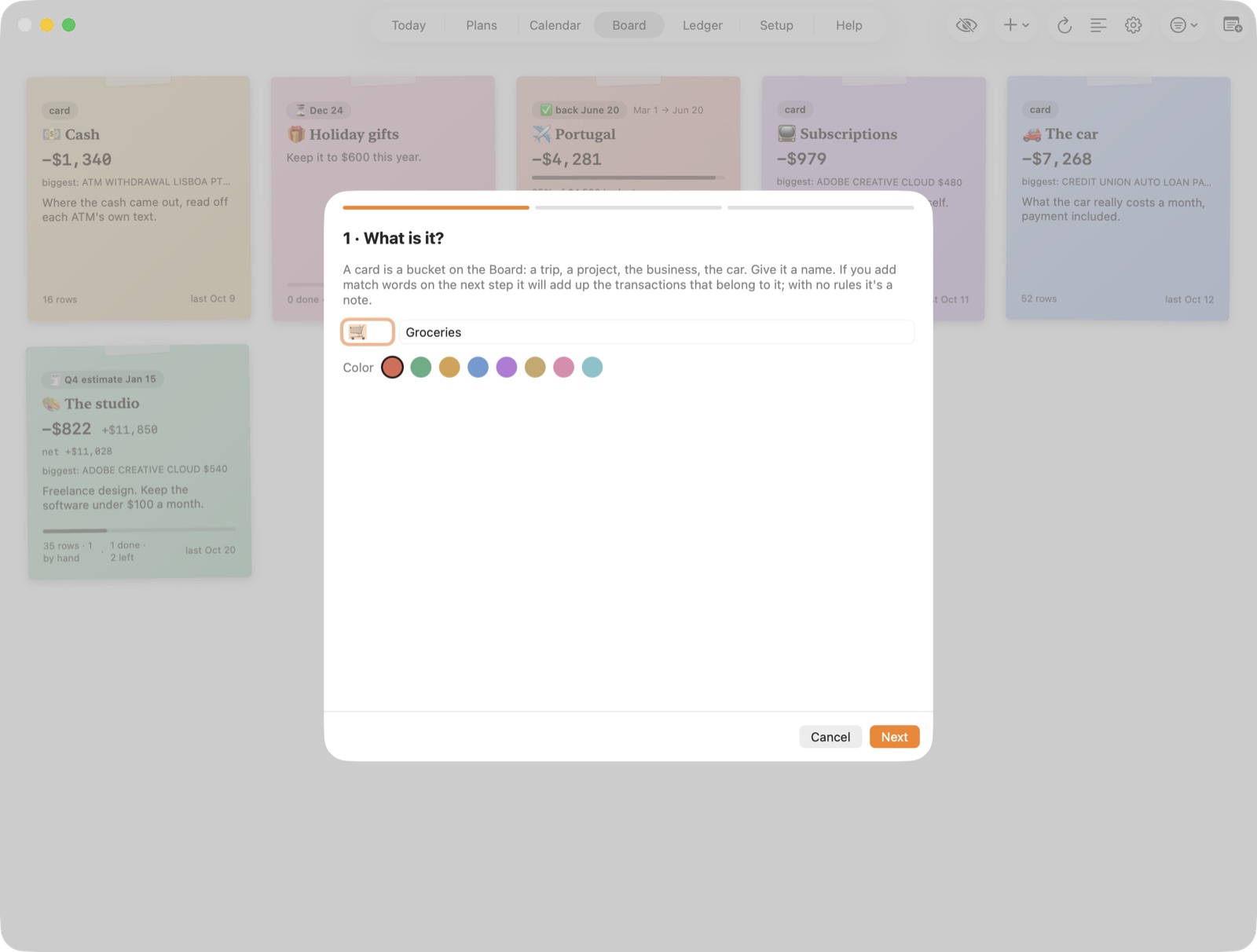
Choose + → New card… or press ⇧⌘N. Three steps:
Step 1: What is it?
An emoji (optional), a name, and a color.
Step 2: How do transactions get onto it?
The wizard reads your own ledger and lists the payees you spend the most with. Click one to add it as a match word, or type your own words, separated by commas. Pick categories to include every row in them. Turn on Only between to limit the card to a date window.
Then press Check. Nothing is saved yet: Check runs the rule against your real ledger and shows how many rows it caught, the totals, the date range, the biggest item and the last few rows. If something wrong got caught, tighten the words and check again. Skip this step entirely for a plain note.
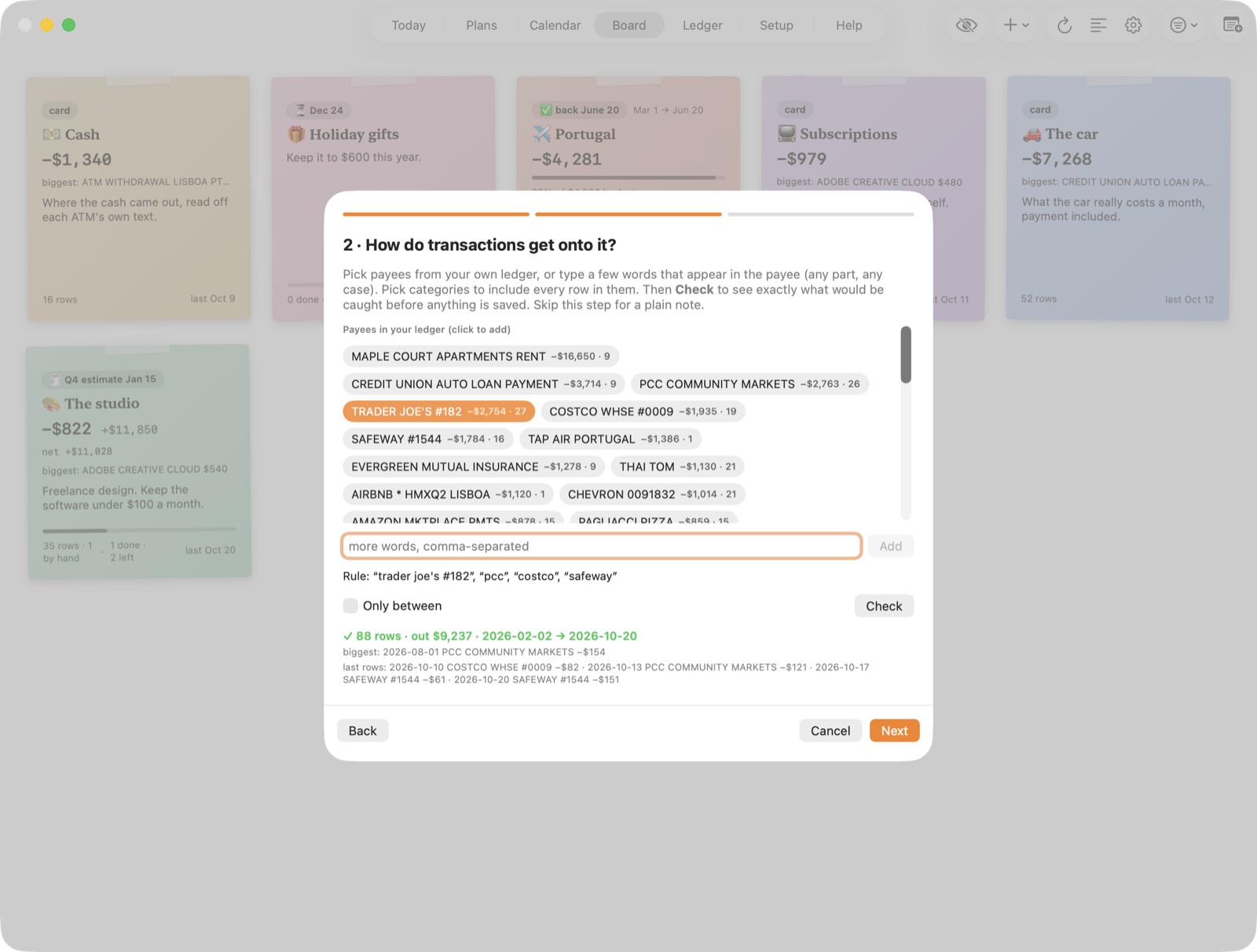
Good match words are distinctive. “costco” is good. “mobil ” with a trailing space is not, because spaces are trimmed and it would also catch “Mobile Payment”; use “mobil everett”. A bare number like “76” catches amounts such as $.76 in the text; use “76 fuel”.
Step 3: Anything to plan?
A sentence or two on what the card is for, an optional budget, and what the chart's colored bands should show (by category, account or payee). Steps and links are added on the card afterwards. Create card saves it and takes you to the Board.
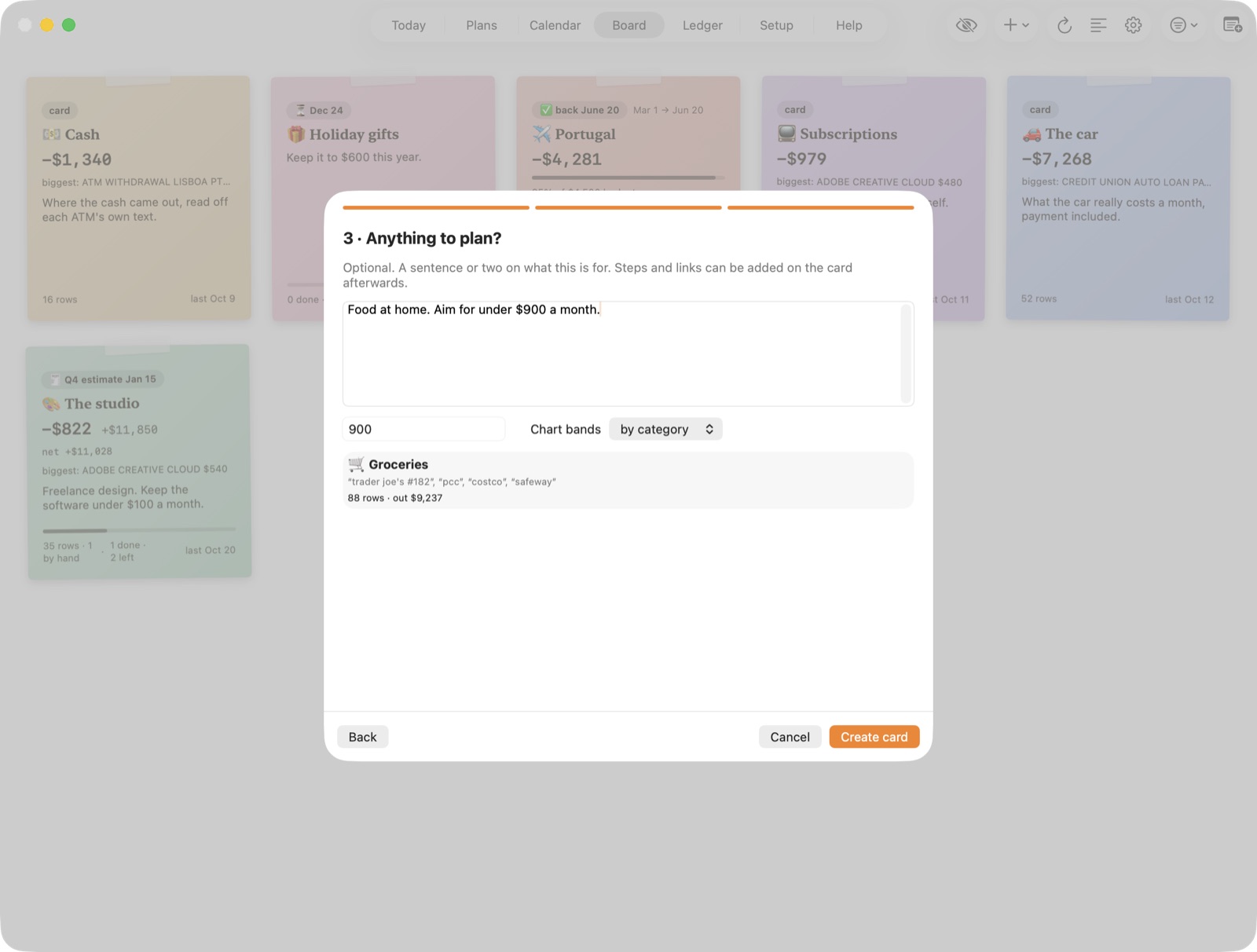
A budget is a total for the whole card, not a monthly figure. For a trip that is right. For an ongoing card such as groceries, either leave the budget empty or give the card a date window of one month.
15. Inside a card
Click a post-it. The card opens with its header across the top, its page on the left, and its plan on the right. A note has only the plan.
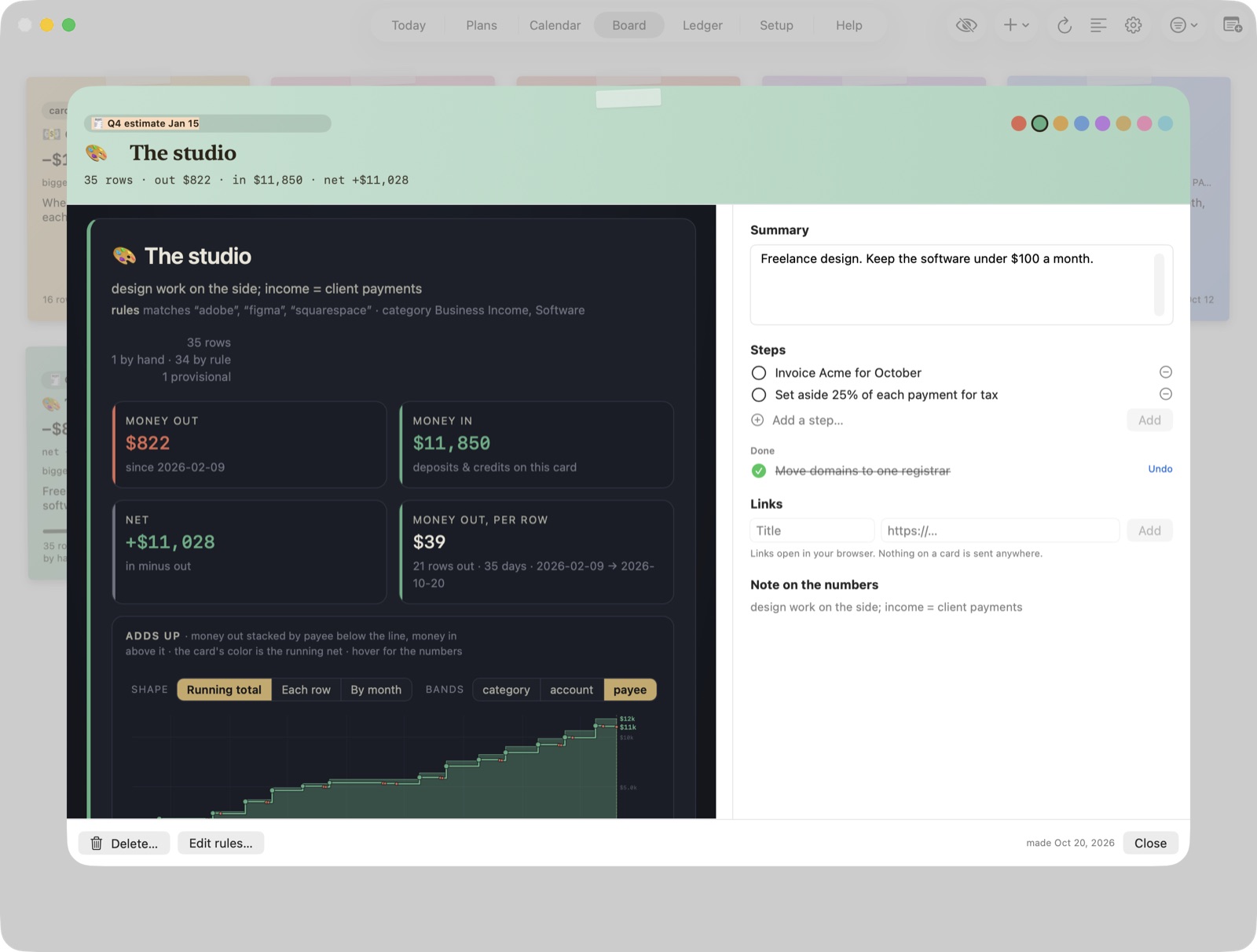
The plan side
- Summary: free text.
- Steps: type in Add a step… and press Return. Click the circle to mark one done; done steps move to the Done list, where Undo puts them back.
- Links: a title and an address. Links open in your browser. Nothing on a card is sent anywhere.
- Tag: the chip at the top left, shown on the post-it. Good for dates: “⏳ Dec 24”, “🧾 Q4 estimate Jan 15”.
Everything saves itself as you type.
The page
The left side is the card's own page: money out, money in, net, and either the budget used or the average per row. Below that:
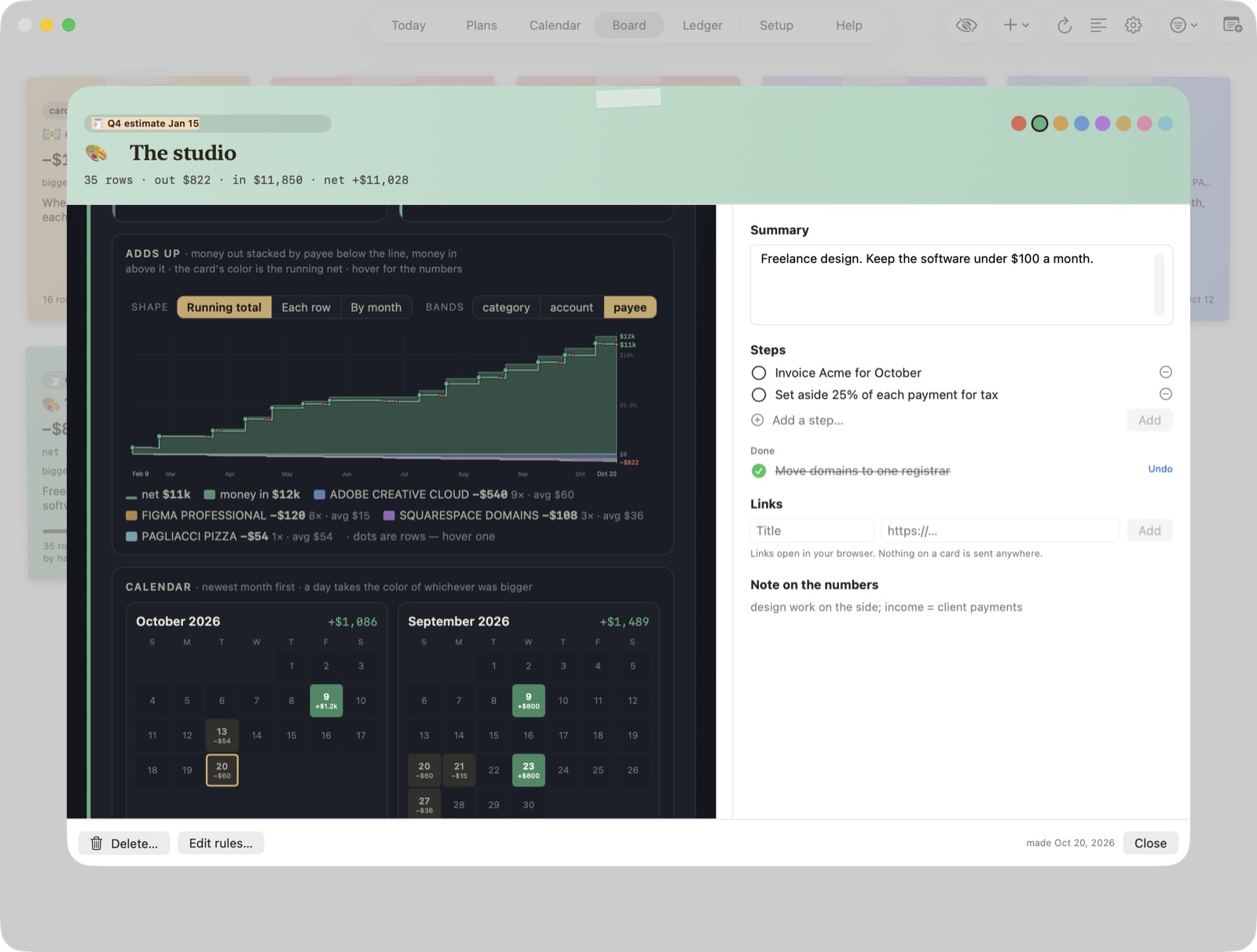
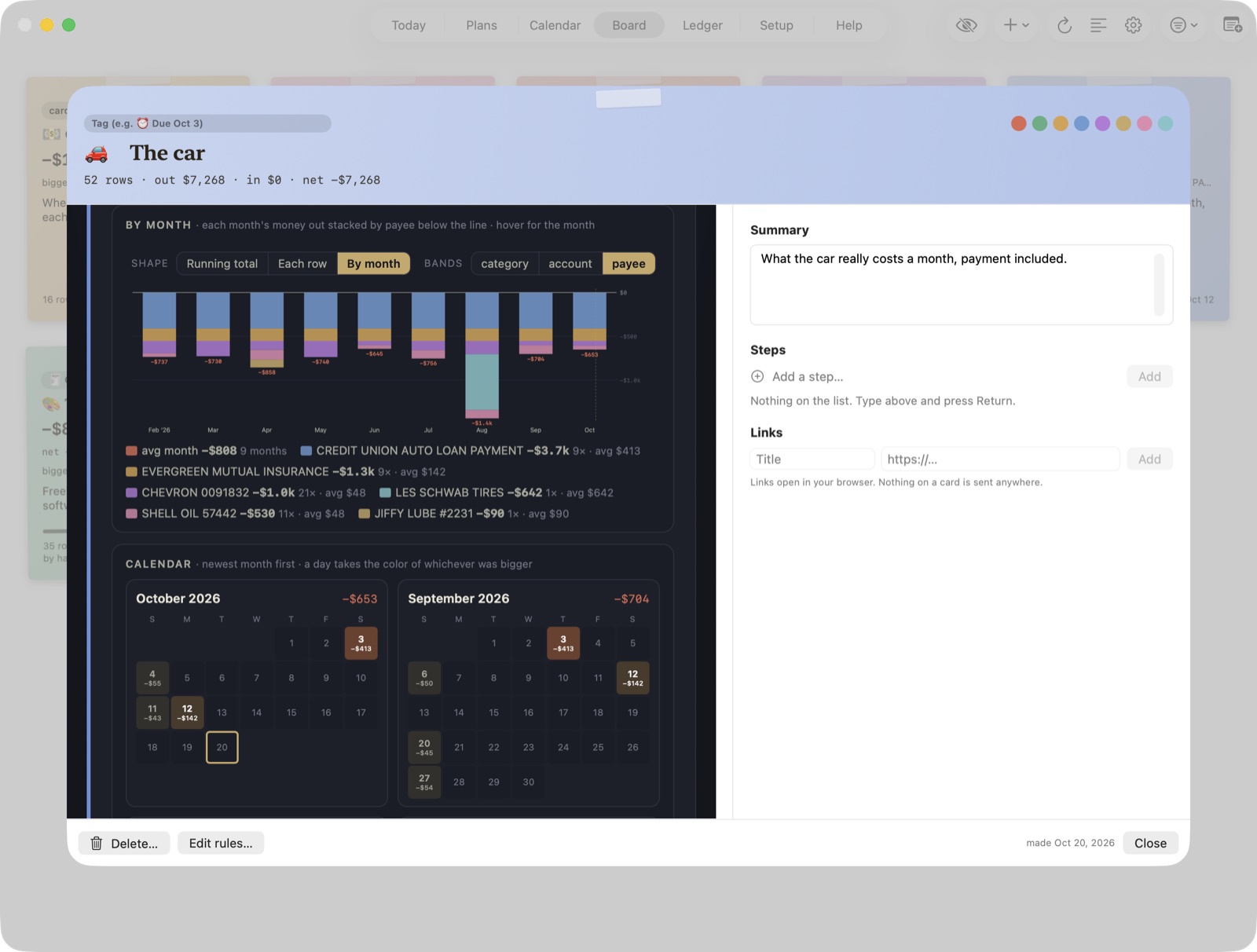
- The chart, in one of three shapes. Running total stacks money out below the line and money in above it, with the card's color as the running net. Each row draws one bar per transaction. By month stacks each month's spending.
- Bands choose what the colors mean: category, account, payee, or your own groups (section 16). Hover any point for the numbers.
- A calendar of the card's days, newest month first.
- Tables by category, payee, month and account, and the rows themselves. The × on a row takes it off this card only.
16. Rules, groups and chart switches
To change what lands on a card, open it and click Edit rules… (on a note, Add rules… (make it add up)). All cards' rules are also in Settings → Cards.
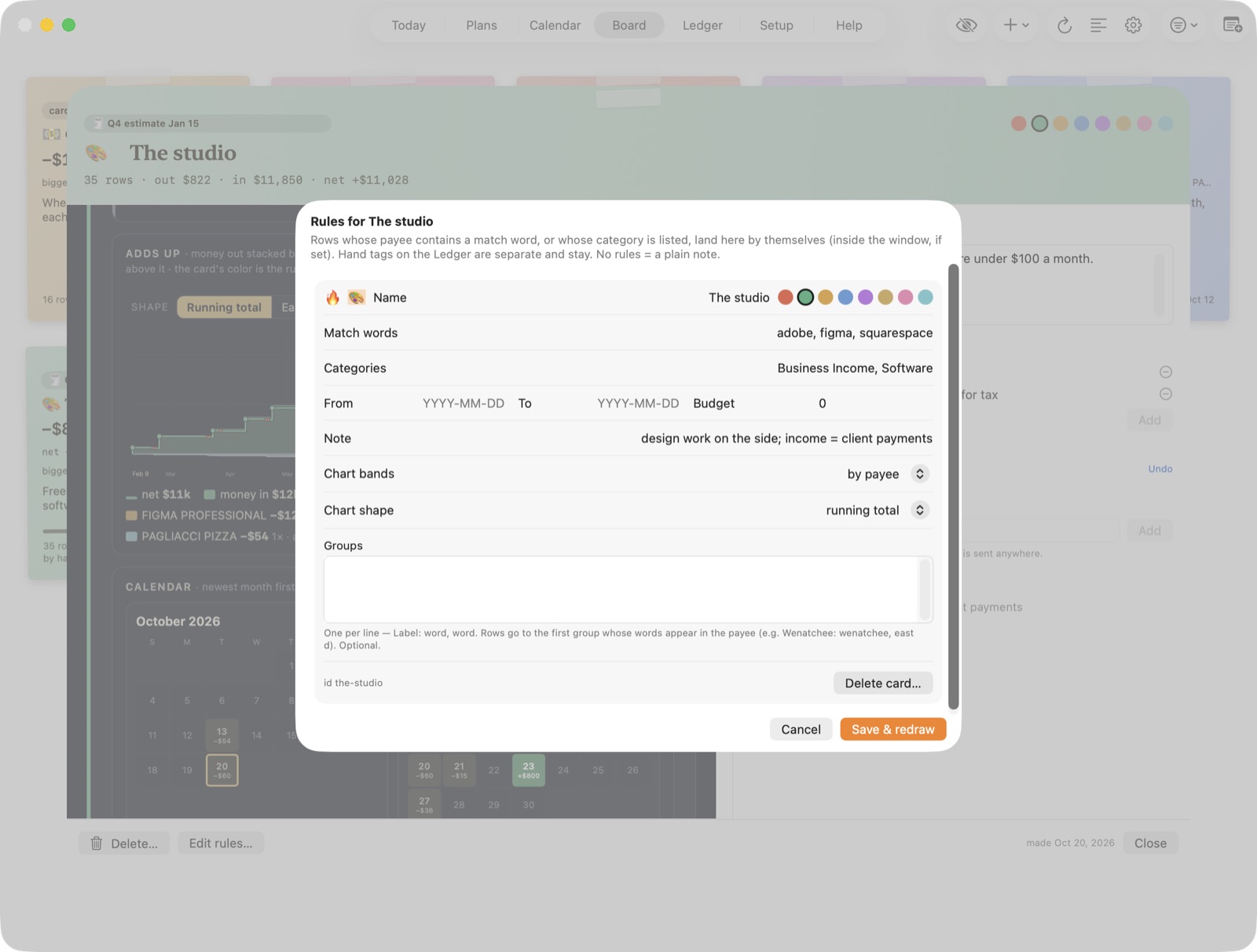
| Field | What it does |
|---|---|
| Match words | Comma-separated bits of payee names. A row lands on the card when its payee contains any of them, in any case. |
| Categories | Ledger categories that always count, spelled exactly as in the ledger. |
| From / To | An optional window, YYYY-MM-DD. Rows outside it are ignored by the rules. |
| Budget | A total for the card. The post-it and the page show how much is used. |
| Note | A line about the numbers, shown on the page. |
| Chart bands | What the chart's colors are: category, account, payee, or group. |
| Chart shape | Running total, each row, or by month. The same switches sit on the card's page; both remember. |
| Groups | One per line, Label: word, word. Each row goes to the first group whose words appear in its payee. Use them for places read off ATM receipts (“Seattle: ballard, capitol hill”) or for any split you want on the chart. |
Save & redraw applies the rules and redraws the card. Rows you added by hand are separate and stay.
17. Putting rows on a card by hand
Rules catch most things. For the rest, such as one dinner that was really a client meeting, use the Ledger:
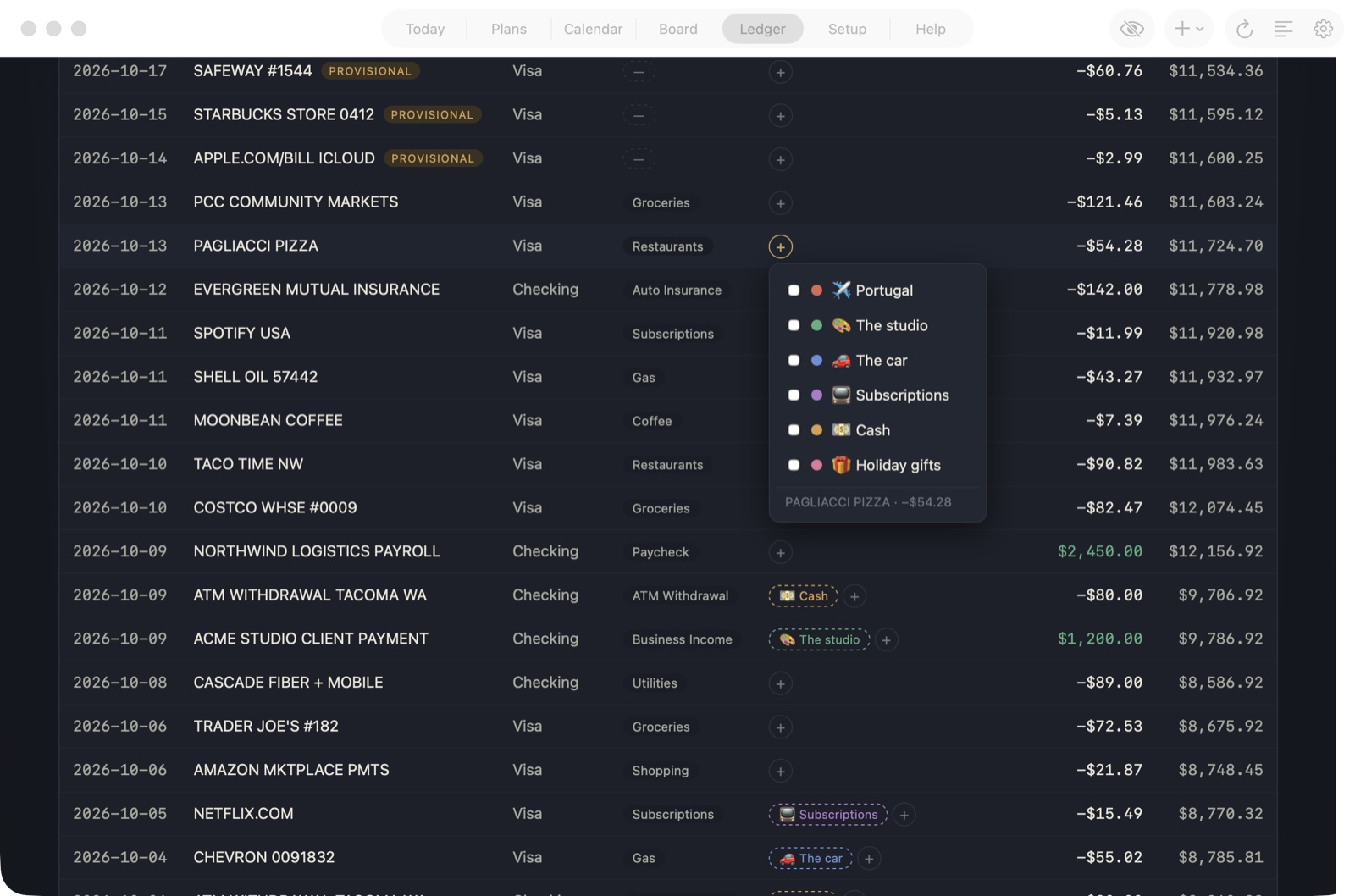
The card's numbers, its page and its post-it update straight away. On the card's page, the × on any row does the reverse.
Tag in the app. The ledger page also opens in an ordinary browser (it's a file in your data folder), but tags made there are remembered by that browser only and never reach your cards.
18. Removing a card, and bringing one back
Open the card and click Delete…, or use Delete card… in its rules. The card, its steps and its links go, and so do the rows you put on it or took off it by hand, so a new card with the same name starts clean. Your transactions stay in the ledger; a card only ever pointed at them.
There is no on/off switch for a card: a card is either on the Board or deleted. If you might want a card back, save its recipe first. With the tool from section 25:
cd ~/Library/Application\ Support/CashKit/ai
./cash-kit cards list --json > ~/Documents/cash-kit-cards-saved.json
That file holds every card's name, emoji, match words, categories and dates. To bring one back, ask your AI assistant to recreate it from that file (there is a prompt for this in section 24), or make it again with the wizard. Rows you had added by hand are not in the recipe and need adding again.
The app also keeps the previous version of your cards as cards.json.bak in the data folder, rewritten on every save. It is a safety net for the last change, not a history.
19. The + menu: steps, floors, bills, milestones
Besides New card…, the + menu opens one small form with four kinds across the top. Each one saves and redraws every page.
| Kind | Fields | What it does |
|---|---|---|
| Plan a step | When · money out or in · amount · what it is · add to | A one-time amount on a date. Add it to every plan, to one plan, or to a new plan named after it. Takes you to the Plans tab. |
| Watch a balance | Account · floor · label | A card on Today that warns “below floor” if the balance drops under it. Good for an emergency fund. |
| Monthly bill | Day of month · amount · label | Adds to the base every plan shares. Days 29 to 31 fall on the last day of shorter months. |
| Milestone | When · emoji · label | A dated marker on the chart. Not money, just something to see coming. |
Known incomes, such as paychecks, are added in Settings → Bills & income.
20. Settings
Open with ⌘, or the gear in the toolbar. Seven tabs: General, Bills & income, Plans, Cards, Categories, Appearance and Accounts. On General, Bills & income and Accounts, changes take effect with Save & redraw (⌘S); Revert undoes them.
General
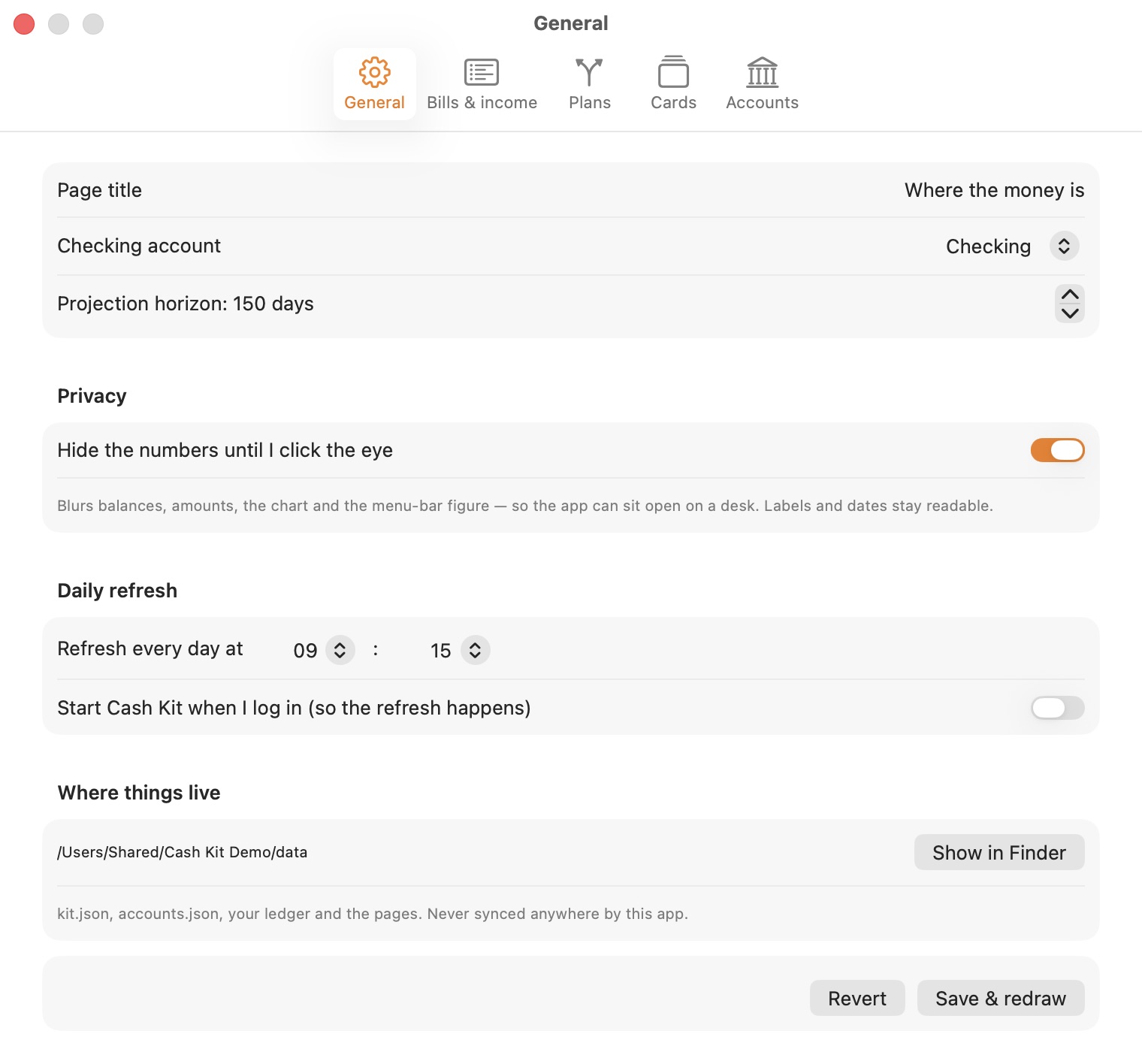
~/Library/Application Support/CashKit.- Page title, the heading on Today. Checking account, the one the projection is drawn for. Projection horizon, 30 to 400 days.
- Privacy: hide the numbers until you click the eye. Applies at once.
- Live ticker: on or off (off by default), and how often it updates. See The live ticker.
- Daily refresh: the time of day, and Start Cash Kit when I log in. Both apply at once.
- Updates: the version you have, and Check for Updates. See Updating.
- Where things live, with Show in Finder.
Bills & income
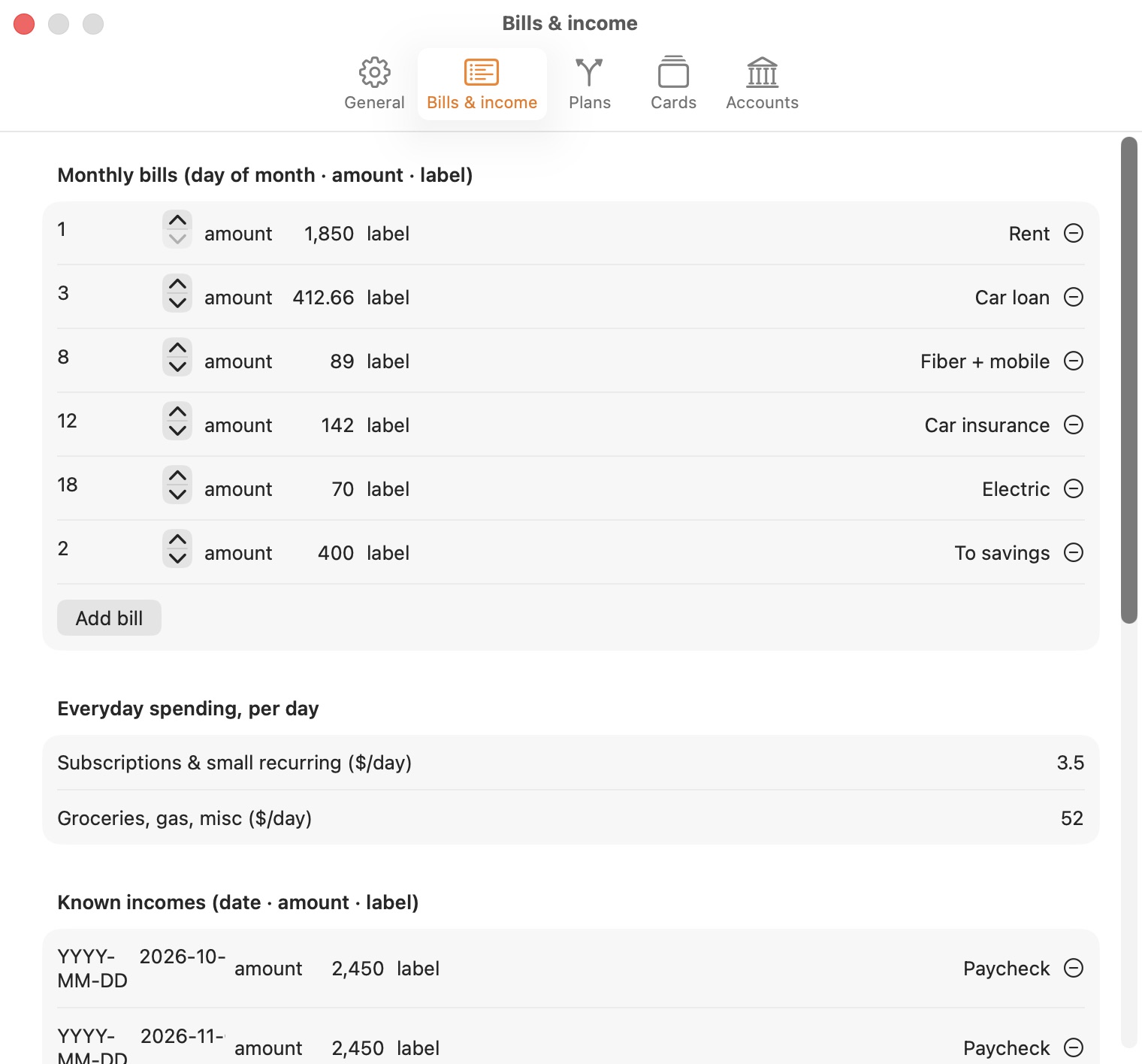
- Monthly bills: day of month, amount, label.
- Everyday spending, per day: small recurring things, and groceries, gas and the rest. Look at a normal month on the Calendar and divide by thirty.
- Known incomes: a date, an amount and a label for each one you expect.
Categories and Appearance
- Categories: your rules for what each charge is (What each charge is).
- Appearance: the colour theme (Themes).
Plans, Cards, Accounts
- Plans: the same editor as the Plans tab, without the chart.
- Cards: every card's rules in one list (section 16).
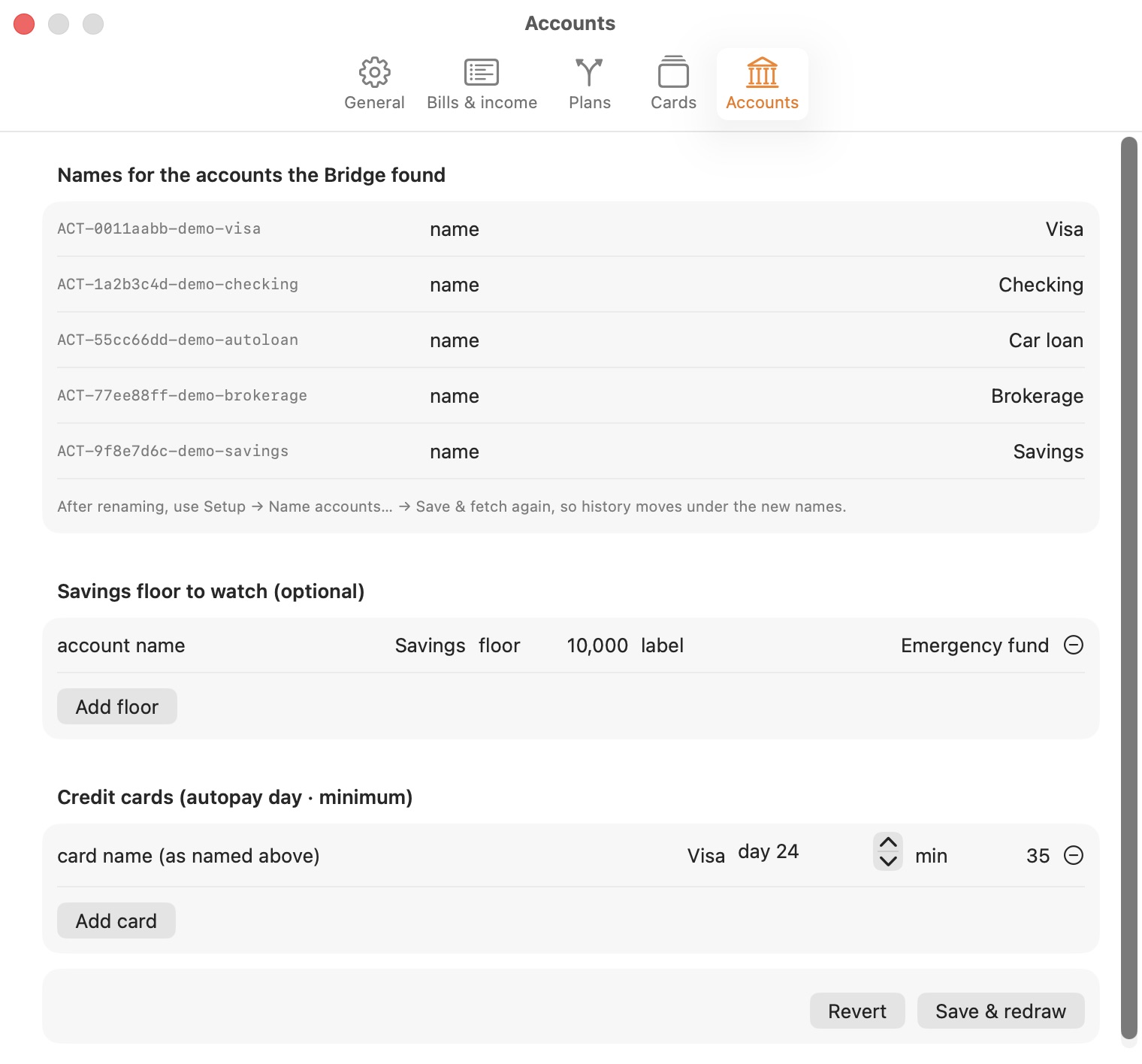
- Accounts: names for the accounts the Bridge found, floors to watch, and credit cards with their autopay day and minimum.
21. The Setup page
Setup is a status page. With no bank link, its first box is No bank link? Start from statements: Import statements… and Manage…, your budget (Type a budget… or Import a spreadsheet…), Investments…, and which account is checking. The bank-link rows below it are then optional. The card at the top says whether the bank link is live, how many accounts there are, which one is checking, and when the last pull was. If anything would stop tomorrow morning's refresh, an orange box lists it. Below, every row is one thing that has to exist, with its status and the button that fixes it.
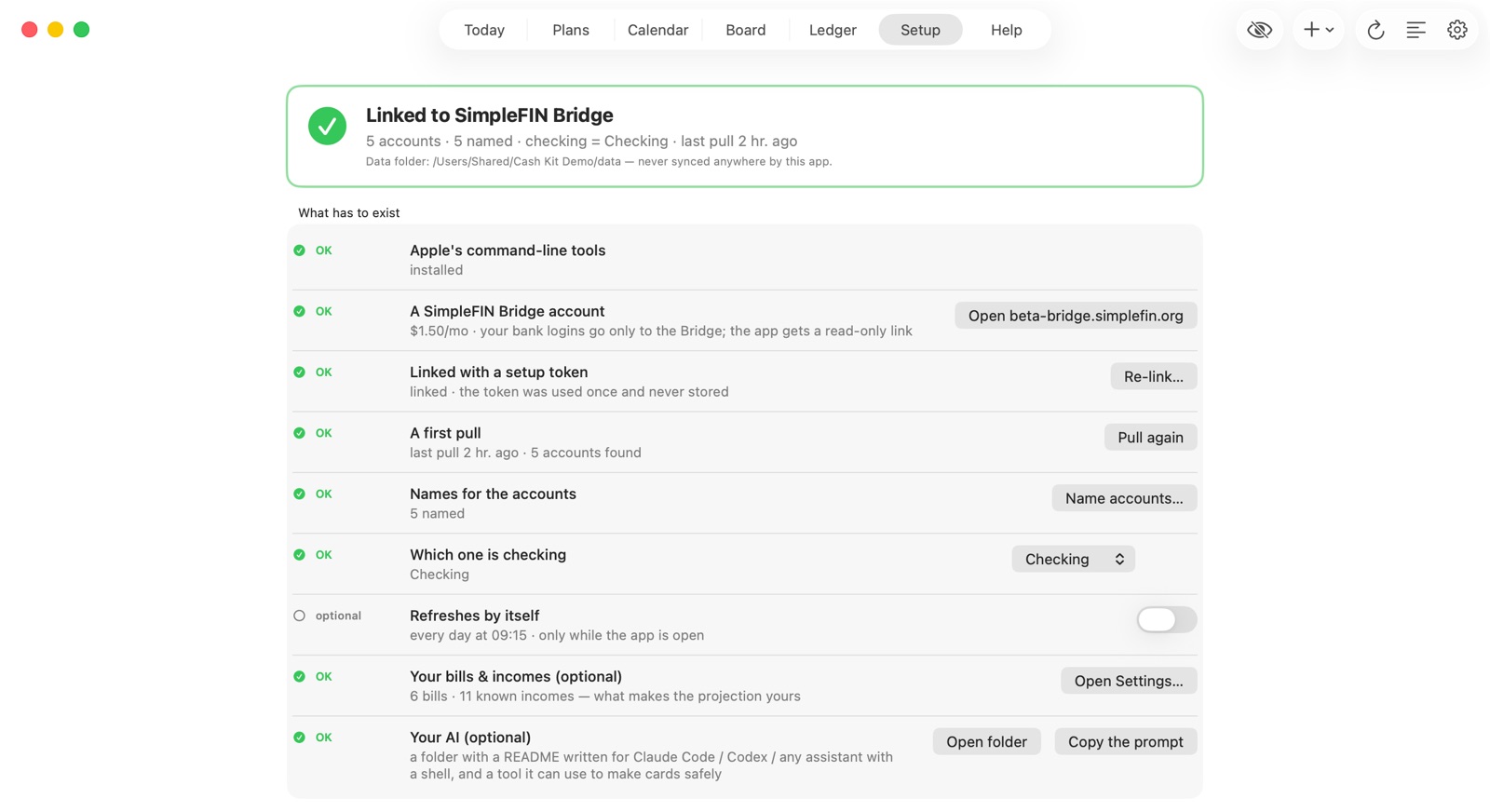
- Re-link… if SimpleFIN rejects the link: make a new setup token and paste it.
- Pull again fetches now. Name accounts… opens the naming sheet, for example when the bank reports a new account.
- Your AI (optional): Open folder and Copy the prompt. See section 23.
22. Staying up to date
- While it is running, Cash Kit refreshes once a day at or after the time in Settings (09:15 unless you change it). A Mac that was asleep at that time refreshes when it wakes.
- It also refreshes when it opens. Opened at or after the refresh time, that counts as the day's refresh; opened earlier, the scheduled one still runs. Closing and reopening the window doesn't refresh again. Refresh (⌘R) does it any time.
- Turn on Start Cash Kit when I log in so the morning refresh happens without you opening anything.
- Log shows what the last refresh did, if you are curious or something looks off.
Provisional rows, and filing them
Each pull looks back 44 days, because banks sometimes deliver rows late. New rows show as PROVISIONAL on the Ledger, and they already count everywhere. Filing them into the permanent ledger is optional and occasional, say once a month. Choose Actions → File Provisional Rows…. It first shows what would be filed, account by account, and files nothing until you click File Them. Then the pages redraw, and the rows no longer show as PROVISIONAL. Rows the bank still lists as pending stay in the feed until they post. The tool in the data folder does the same:
cd ~/Library/Application\ Support/CashKit/ai
./cash-kit ingest --dry-run     # shows what would be filed
./cash-kit ingest               # files it
Rows are filed without categories, except transfers. Categories in the ledger come from you, or from an assistant you ask to fill them in.
23. Letting an AI build cards
Cash Kit writes a folder for an AI assistant at ~/Library/Application Support/CashKit/ai. It holds three files, rewritten each time the app starts:
- README.md: written for the assistant. It explains your files, what it may and may not touch, and the one tool it should use.
- cash-kit: that tool, wired to your data folder.
- prompt.txt: a starting request. Setup → Copy the prompt puts it on your clipboard.
Any assistant that can run commands on your Mac can use it: Claude Code, Codex, or another agent with a shell. Start it in that folder:
cd ~/Library/Application\ Support/CashKit/ai
claude
Then paste a prompt from the next section. The tool means the assistant never edits your files by hand: it looks at your ledger, previews each rule, and only then adds the card. The Board shows new cards at once.
Know where the words go. A cloud assistant sends what it reads to its provider. The README tells it to read summaries first and individual rows only when needed, and never to touch the bank link in ~/.config/cash-kit. If that is still more than you want to share, use the wizard instead, or a local model.
24. Starter prompts
Paste any of these into an assistant started in the ai folder. Edit the words in brackets. Each one asks the assistant to preview before it adds, and to tell you what it caught, so you stay in charge.
Getting started
Read the room first
Read README.md in this folder first. Then run ./cash-kit cards suggest --json and tell me, in plain words, what my money mostly goes to: the top payees, the categories, and anything that looks like it deserves its own card. Don't add anything yet.
Propose a starter set
Read README.md first. Then propose 4 to 6 cards that would make my spending easier to see. For each, preview the rule with ./cash-kit cards preview --json and show me rows, total out and in, and the biggest item. Wait for me to say which ones to add.
Cards for things in your life
A trip
Read README.md first. Make a card for my trip to [Portugal] from [2026-06-06] to [2026-06-20]. Include the flights and lodging I booked ahead of time (airlines, Airbnb, hotels, booking sites) and everything I spent inside those dates on travel, restaurants, groceries and cash. Leave out my regular monthly bills. Preview first, show me anything that looks wrong, then add it with a budget of [$4,500].
The side business
Read README.md first. Make a card called "[The studio]" for my side business: the software and services I pay for it ([Adobe, Figma, Squarespace]) and the client payments that come in. Band the chart by payee. Tell me the net for this year and the biggest expense.
The car
Read README.md first. Make a card for what the car really costs: fuel stations, the loan payment, insurance, repairs, parking and tolls. Use the by-month shape banded by payee, and tell me the average month.
Subscriptions
Read README.md first. Find everything that renews by itself: streaming, apps, cloud storage, memberships, software. Make a "Subscriptions" card, banded by payee, by month. Then list each one with what it costs a year, and flag any I've paid for but might not use.
Cash, by place
Read README.md first. Make a "Cash" card for ATM withdrawals. Read the town names off the ATM payee text and make groups for the places that come up most, then band the chart by group.
A project with a budget
Read README.md first. I'm [redoing the kitchen] from [2026-09-01]. Make a card for it: [Home Depot, Lowe's, the contractor's name] and anything in [Home Improvement]. Budget [$12,000]. Add steps for what's left: [order the counters, tile, final payment].
Notes and plans on cards
A plain note with steps
Read README.md first. Add a note (a card with no rules) called "[Holiday gifts]" with the tag "[⏳ Dec 24]", the summary "[Keep it to $600 this year]", and these steps: [Mum: olive oil, Sam: climbing shoes, book the train home].
Update a card's plan
Read README.md first. On the card [portugal], mark [Book flights] as done, add a step [Exchange some euros], and add the link [Comboios timetable = https://www.cp.pt].
Looking after your cards
Clean up a card
Read README.md first. Look at the card [the-car]. List rows it caught that probably don't belong, and words that are catching too much. Propose a tighter rule, preview it, and show me the before and after. Don't change anything until I agree.
Find what no card catches
Read README.md first. Which of my biggest payees this year are on no card at all? Suggest where each belongs, or a new card if several belong together.
Save my cards before changes
Read README.md first. Run ./cash-kit cards list --json and save the output to ~/Documents/cash-kit-cards-saved.json. Tell me how many cards it holds.
Remove a card
Read README.md first. Show me the card [subscriptions]: its rules and numbers. Save its recipe to ~/Documents/cash-kit-cards-saved.json if it isn't there already, then remove it with ./cash-kit cards remove.
Bring a card back
Read README.md first. Recreate the card "[Subscriptions]" from ~/Documents/cash-kit-cards-saved.json with ./cash-kit cards add, using the same name, emoji, match words, categories, dates, budget and chart settings. Preview first and tell me what it catches now.
Questions, not cards
Month against month
Read README.md first. Compare [September] with [August]: money out by category, what grew the most, and the three biggest single items. Don't make any cards.
Can I afford it?
Read README.md first. Look at today.json and kit.json. If I spend [$2,199] on [2026-11-05], what's the lowest my checking account gets in the next 150 days under each plan? Don't change any files.
25. The cards tool, command by command
The tool the assistant uses is yours too. Run it from the ai folder:
cd ~/Library/Application\ Support/CashKit/ai
| Command | What it does |
|---|---|
./cash-kit cards suggest [--since DATE] [--json] | What the ledger holds: top payees, categories, accounts and months, each with rows, out and in. Transfers are left out. |
./cash-kit cards preview --match "a,b" --categories "X" [--since] [--until] [--json] | A dry run of a rule: rows, totals, first and last date, the biggest item, money out by month, top payees, and the latest rows. Writes nothing. |
./cash-kit cards add --name "Name" … | Makes a card and redraws the pages. Options below. |
./cash-kit cards plan ID --summary … --todo "a|b" --done "a|b" --tag … --link "Title=url" | Changes only the plan fields you pass. |
./cash-kit cards list [--json] | Every card with its id, rules and current numbers. |
./cash-kit cards remove ID | Deletes the card, and the rows put on it or taken off it by hand. Transactions stay in the ledger. |
Options for add:
| Option | Meaning |
|---|---|
--name | Required. The id is made from it: “The Car” becomes the-car. |
--emoji, --color | Optional. The color defaults to the next one in the palette. |
--match "a,b" | Match words. |
--categories "X,Y" | Categories that always count. |
--since, --until | The date window, YYYY-MM-DD. |
--budget 4000 | A total. 4000, 4,000 and $4,000 all work. |
--note, --summary, --tag | The note on the numbers, the plan summary, the chip. |
--todo "a|b", --done "a|b" | Steps, separated by |. |
--link "Title=url" | Repeat for more links. |
--stack | category (default), account, payee or group. Anything else is refused. |
--shape | running (default), rows or month. Anything else is refused. |
--group "Label=w,w" | Repeat for each group, in order. The first group whose words match wins. |
--json | Machine-readable output. |
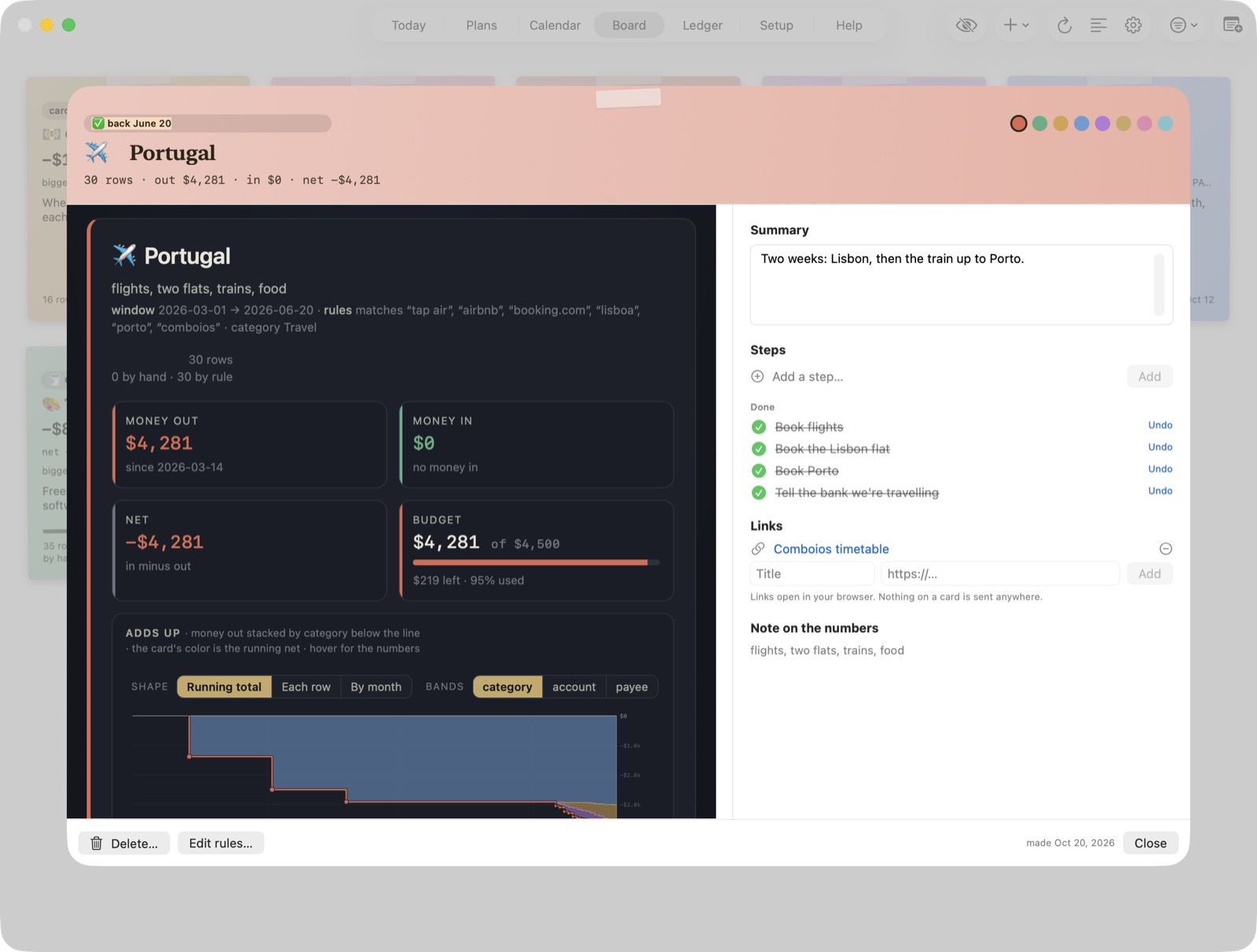
An example that makes the Portugal card from this guide:
./cash-kit cards add --name "Portugal" --emoji "✈️" \
  --match "tap air,airbnb,booking.com,lisboa,porto,comboios" --categories "Travel" \
  --since 2026-03-01 --until 2026-06-20 --budget 4500 \
  --summary "Two weeks: Lisbon, then the train up to Porto." \
  --done "Book flights|Book the Lisbon flat" --link "Comboios timetable=https://www.cp.pt"
Use the tool or the app, never a text editor, to change cards.json. The app may be open, and the tool and the app both merge their changes with the file; hand edits can be lost.
26. Walkthrough: a trip, start to finish
27. Walkthrough: the side business
28. Where your data lives
| Where | What |
|---|---|
~/Library/Application Support/CashKit/ | Your plan (kit.json), account names (accounts.json), cards (cards.json and cards.json.bak), the ledger (ledger/), the pages the app draws, and the ai folder. Actions → Open Data Folder opens it. |
…/CashKit/ledger/ | transactions.csv (every row), balances.csv (balances from statements, from you, and investment totals), statements.csv and the statements/ folder (each imported file, kept), holdings.csv (investment snapshots). |
…/CashKit/ | budget.json (your budget), categories.json (your category rules), statement_accounts.json (which file belongs to which account). |
~/.config/cash-kit/ | The read-only bank link and the pull state. Never share this folder. |
- Files are written so only your user can read them.
- Backups: Time Machine to a drive you own covers both folders.
- Keep them local. Don't move them into iCloud Drive, Dropbox or any other synced folder.
- A new Mac: install Cash Kit, quit it, copy both folders across, then open it. Or start fresh and link again with a new setup token.
29. Troubleshooting & FAQ
The numbers are blurry
That is privacy mode, not an error. Click the eye in the toolbar, or turn it off in Settings → General.
“SimpleFIN rejected the link”
The link was revoked or expired. Make a new setup token at the Bridge and use Setup → Re-link….
“Linked, but no banks are connected yet”
Connect at least one bank at beta-bridge.simplefin.org, then Pull again.
One account stopped updating
Today shows a stale badge on it. The bank usually wants you to sign in again at the Bridge. When it comes back, the missing days fill in by themselves, because every pull looks back 44 days.
“New account(s) found at the bank”
Setup → Name accounts…, give it a name, Save & fetch again.
“Which account is your checking?”
Choose it under Setup → Which one is checking, or Settings → General.
“The plan file (kit.json) has a typo”
Someone edited kit.json by hand and left a mistake in it. The message gives the line and column. Open the file in a text editor (Actions → Open Data Folder), fix that line, then click Settings → Revert to read it again. Until the file reads cleanly, the app saves nothing to it, so it can't replace your plan with blanks.
A card catches things it shouldn't
A match word is too short. Open the card, Edit rules…, and lengthen it. To keep one row off without changing the rule, untick it on the Ledger or press × on the card's page.
A card's budget shows over 1,000%
The budget is a total for the card, not a month. Clear it, or give the card a date window.
The chart looks flat or wrong
Check Settings → Bills & income. The projection is only as good as the bills, everyday spending and incomes you gave it.
A page is blank
Press Refresh. If it stays blank, open Log and read the last lines.
My holdings value didn't change today
That's expected. The Holdings tab and net worth show your last snapshot, "as of" its date, and never change by themselves. Save or import a new snapshot under + → Investments… to update them. The live ticker, if it's on, shows today's prices in the strip at the bottom without changing what's saved. See Do prices update by themselves?
A statement won't import: "do not add up"
The rows the reader found don't match the statement's own balances, so a line was missed or misread (most often in a PDF). Download the CSV or QFX for that month instead, or tick Import anyway and check the month on the Ledger.
A statement went into the wrong account
+ → Manage statements…, Remove… it, then import it again into the right account.
The Budget tab says a month is partial
Some account with data in that month doesn't cover all of it. Import that account's statement for the month; the Statements grid on the Budget tab shows which.
Does anything leave my Mac?
Statements, budgets and positions you import never do. With a bank link, the claim and the daily pull go to SimpleFIN over HTTPS. With the live ticker on, ticker symbols (nothing else) go to Yahoo's quote feed. Links on cards open in your browser when you click them. An AI assistant you start yourself is the one exception you control (see section 23).
30. Removing Cash Kit
Quit Cash Kit and drag it from Applications to the Trash. Your data stays where it is. To remove everything, also delete ~/Library/Application Support/CashKit and ~/.config/cash-kit. If you turned on start at login, macOS removes that with the app. To stop paying, cancel at SimpleFIN Bridge.